How to Use Nearby Share on Android Devices
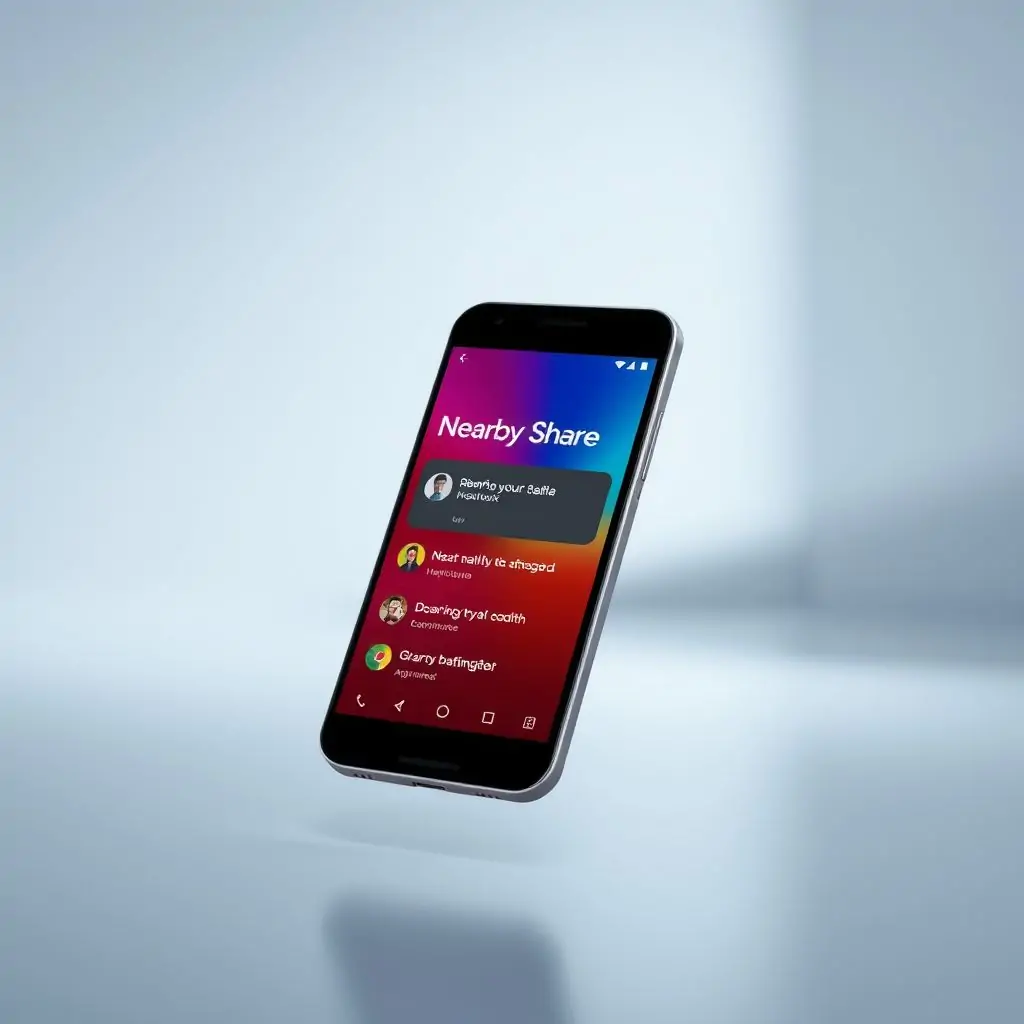
When it comes to sharing files between Android devices, Google has made Nearby Share a powerful tool that simplifies the process significantly. This feature allows you to share photos, videos, documents, and other types of files with just a few taps, without the need for internet or Bluetooth connections. In this article, we will explore How to Use Nearby Share on Android Devices, providing detailed instructions and expert insights to help you make the most out of this versatile feature.
- Introduction to Nearby Share
How to Use Nearby Share on Android Devices
Enabling and Setting Up Nearby Share
- Sharing Files via Nearby Share
- Understanding Permissions and Security Settings
- Advanced Features and Tips for Nearby Share
- Troubleshooting Common Issues with Nearby Share
- Comparing Nearby Share to Other File Sharing Methods
- Conclusion: Mastering Nearby Share on Android Devices
How to Use Nearby Share on Android Devices: Enabling and Setting Up Nearby Share
To get started with Nearby Share, you need to ensure it is enabled and properly set up on your device. Begin by opening the Settings app on your Android phone or tablet.
Step 1: Enable Nearby Share Feature
Head over to the “Connected devices” section and tap on “Nearby share”. From there, toggle the switch next to “Nearby share” to turn it on. This action will initiate the setup process.
Step 2: Set Up Sharing Permissions
Once enabled, you can set up sharing permissions by configuring who can see your device when they use Nearby Share and what kind of files you allow others to share with you. This customization ensures that only trusted contacts can access your device.
Sharing Files via Nearby Share
Now that Nearby Share is set up, sharing files becomes a straightforward process. Follow these steps to share content:
Select the File or Item You Want to Share
- Browse your device for the file you wish to send.
- Tap and hold on the file, then select “Share” from the menu options.
Initiate Nearby Share Connection
- Select the Nearby share option in the sharing menu.
- The screen will show a list of contacts who have Nearby share enabled and are within range. Choose your intended recipient from this list.
Understanding Permissions and Security Settings
When using Nearby Share, understanding the security settings is crucial for maintaining privacy and safety:
Privacy and Access Control
You can control who sees your device when they use Nearby Share. Set this to “Contacts only” if you want to limit visibility.
Limiting File Types
Adjust the settings to allow or disallow specific file types from being shared with others for added security.
How to Use Nearby Share on Android Devices: Advanced Features and Tips
Nearby Share offers several advanced features that can enhance your experience:
Creating Customizable Shortcuts
Create shortcuts for frequently shared files or folders directly from the Home screen.
Using Wi-Fi Direct
For faster file transfers, Nearby Share automatically switches to Wi-Fi Direct when available and supported by both devices.
Troubleshooting Common Issues with Nearby Share
Sometimes, users may encounter problems while using Nearby Share. Here are a few common issues and their solutions:
Devices Not Showing Up in the List of Contacts
- Ensure that both devices have Bluetooth and Wi-Fi turned on.
- Make sure that the Nearby share feature is enabled on both devices.
Comparing Nearby Share to Other File Sharing Methods
Nearby Share offers several advantages over traditional file sharing methods:
Easier Setup Process
Setting up and using Nearby Share is more straightforward compared to other methods like Bluetooth or email attachments.
Tool Engines for Enhanced Functionality
To further enhance your file management capabilities, consider leveraging additional tools such as those found on ToolEngines.
Conclusion: Mastering Nearby Share on Android Devices
Mastery of the How to Use Nearby Share on Android Devices feature opens up new possibilities for efficient file sharing and collaboration. By following the steps outlined in this article, you can confidently use Nearby Share to its fullest potential.
As always, stay informed about updates and improvements by regularly checking official Google sources or trusted technology blogs like Bloomberg.

- Tool Engines
- How to Use Nearby Share on Android Devices April 10, 2026
- Fix Android Apps Not Updating from Play Store April 10, 2026
- Guide to Android Privacy and Security Settings April 10, 2026
- Best Automation Apps for Android April 10, 2026
- How to Create Custom Themes on Android April 10, 2026