How to Reset iPhone to Factory Settings
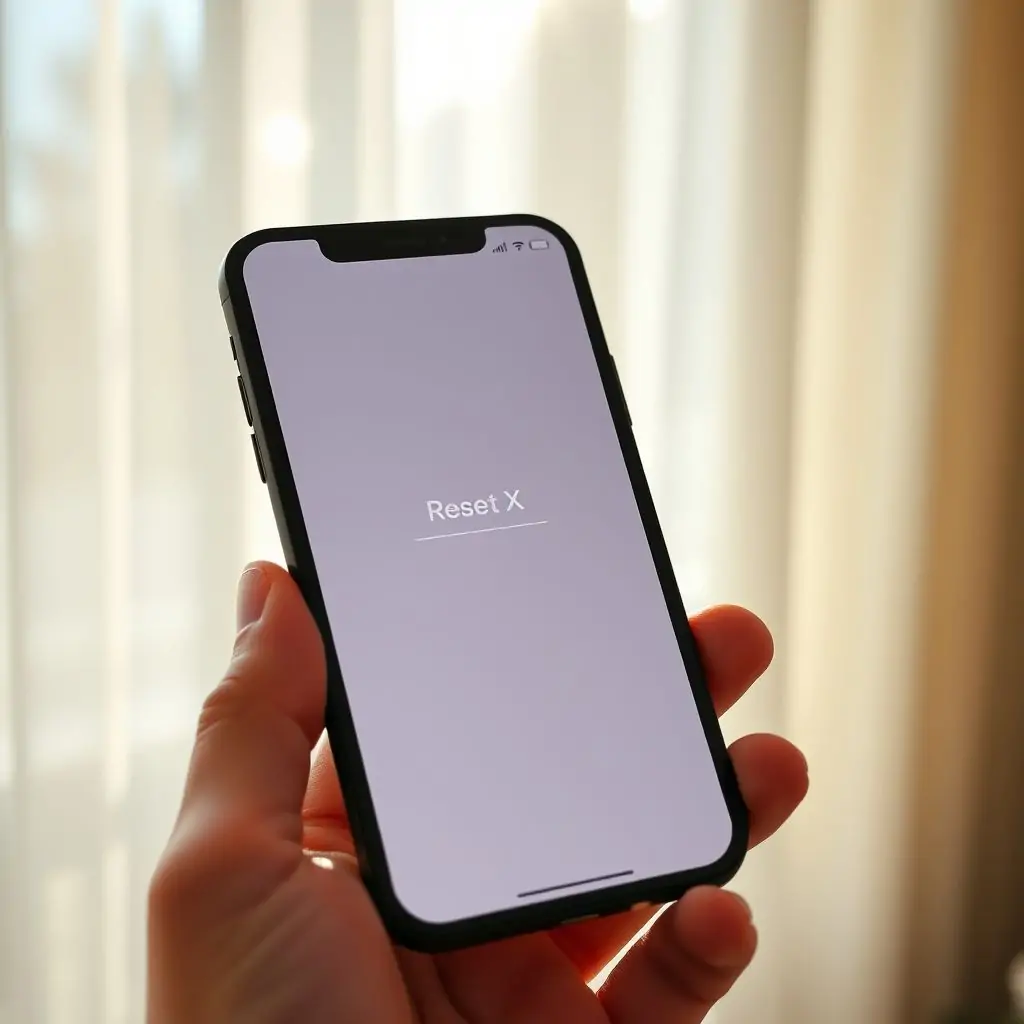
When you need to reset your iPhone to factory settings, it can be a daunting task if you’re not familiar with the process. This guide will walk you through how to reset iPhone to factory settings effectively and safely. Whether you’re setting up an old phone for a new user or dealing with software issues that won’t resolve themselves otherwise, this step-by-step tutorial provides all the necessary information to perform a full system wipe on your device. In this article, we’ll cover everything from backing up data to restoring your iPhone after the factory reset.
- Introduction to Resetting Your iPhone
Why You Might Want To Reset Your iPhone To Factory Settings
Steps Before Resetting Your iPhone To Factory Settings
- How to Backup iPhone Data Using iCloud and iTunes
Methods for How To Reset iPhone To Factory Settings
What Happens When You Reset Your iPhone To Factory Settings?
- Restoring From Backup After A Full Reset Of Your iPhone
Common Mistakes and How to Avoid Them During The Process
Troubleshooting Common Issues When Resetting iPhone To Factory Settings
Introduction to Resetting Your iPhone
Resetting your iPhone is a process that can be both liberating and daunting. It’s essential to understand what it entails before you begin. When you perform a factory reset, all the data stored on your device will be deleted—this includes apps, photos, settings, and more. However, this also gives you an opportunity to start fresh with iOS without any prior configurations or third-party applications interfering.
Why You Might Want To Reset Your iPhone To Factory Settings
There are several reasons why resetting your iPhone might be a good idea:
- Bugs and Performance Issues: If your iPhone has become sluggish or is experiencing frequent crashes, a factory reset can often resolve these problems.
- Data Security: Selling an old device without erasing it could lead to serious privacy breaches. A complete wipe ensures no one else will have access to your personal information.
- Software Updates: Sometimes major software updates require a clean slate before installation.
Steps Before Resetting Your iPhone To Factory Settings
Before you proceed with the factory reset, there are some critical steps to follow to ensure that your data is safe:
- Backup Your Data: Use iCloud or iTunes to create a backup of all important information stored on your device.
- Remove Credit Cards and Payment Information: If you have any payment methods saved in the App Store or Apple ID settings, be sure to remove them before resetting.
How to Backup iPhone Data Using iCloud and iTunes
Backing up your data is crucial because it allows you to restore everything after a factory reset. Here’s how you can do it:
- iCloud Backup: Go to Settings > [Your Name] > iCloud, then select the apps you want to back up.
- Trouble-Free Restore: Ensure that your device is connected to a Wi-Fi network when performing backups. This helps in downloading larger files quickly and efficiently.
How To Reset iPhone To Factory Settings
To reset your iPhone, follow these steps:
- Open the Settings app.
- Tap on Your Name at the top.
- Select iCloud.
- Scroll down and find Data Management > Delete All Content and Settings.
- Confirm that you want to delete everything by tapping Delete Now.
What Happens When You Reset Your iPhone To Factory Settings?
A factory reset will erase all data, settings, apps, and media from your device. However, it does not affect the hardware or operating system installation.
- Activation: Once reset, you’ll need to activate your iPhone again using an Apple ID.
- App Store: You may have to reinstall all your apps and reconfigure settings.
Restoring From Backup After A Full Reset Of Your iPhone
If you’ve backed up your data before the reset, restoring it is simple. Connect your device to a computer with iTunes installed or use iCloud:
- Computer and iTunes: Open iTunes on your Mac or PC, select your device from the list, then click Restore Backup.
- iCloud: Log in to icloud.com, go to Settings > [Your Name] > iCloud Backup. Then choose a backup you want to restore and follow the prompts.
Common Mistakes and How to Avoid Them During The Process
Mistakes during this process can lead to losing important data or encountering unexpected issues:
- Not Saving All Important Data: Always ensure that critical information is saved somewhere safe.
- No Wi-Fi Connection: Make sure your iPhone has a stable internet connection before initiating any backups or restores.
Troubleshooting Common Issues When Resetting iPhone To Factory Settings
Sometimes, you may face issues such as being unable to connect to Wi-Fi after the reset. Here are some tips:
- Check Network Preferences: Ensure that your network settings allow for automatic connection.
- Update iOS: A factory reset might require updating to the latest version of iOS which could resolve connectivity issues.
In conclusion, resetting an iPhone to its factory settings is a powerful tool for troubleshooting and starting anew. However, it’s essential to approach this process with caution and preparation. By following our guide on how to reset iPhone to factory settings, you can ensure that your device functions optimally while safeguarding against data loss.

- Tool Engines
- How to Reset iPhone to Factory Settings March 27, 2026
- Complete Guide to iPhone Keyboard Shortcuts March 27, 2026
- Troubleshooting WiFi Issues on iOS March 27, 2026
- How to Free Up Storage Space on iPhone March 27, 2026
- Best Hidden iOS Features and Tricks March 27, 2026