How to Fix Blue Screen of Death in Windows
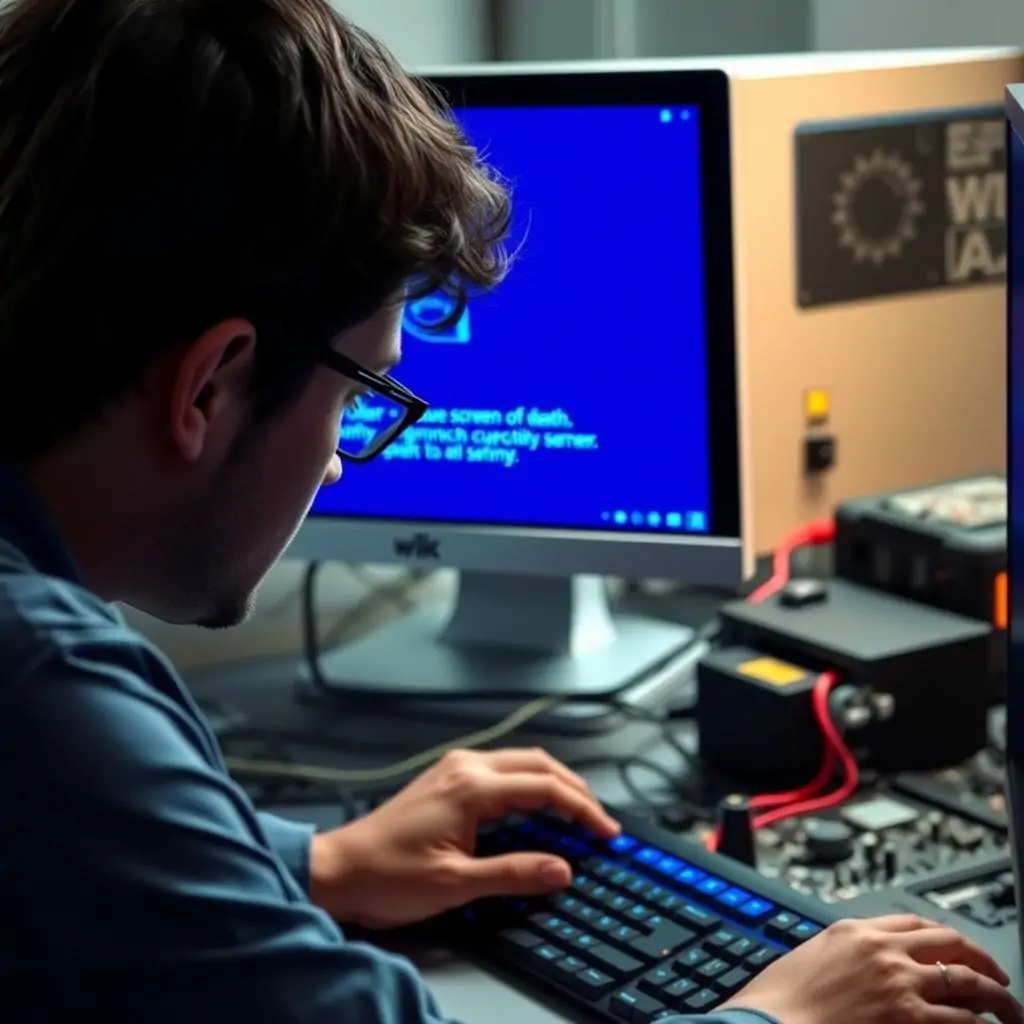
Are you encountering issues with your Windows system experiencing a Blue Screen of Death (BSOD)? Understanding how to fix blue screen of death in windows can be crucial for maintaining the stability and functionality of your computer. This comprehensive guide will walk you through various troubleshooting steps, diagnostic tools, and common causes behind BSODs, providing detailed insights on resolving these issues effectively.
- Understanding Blue Screen of Death (BSOD)
- Common Causes of Blue Screen of Death
- How to Fix Blue Screen of Death in Windows: Initial Steps
- Advanced Troubleshooting Methods for BSODs
- Using Diagnostic Tools and Drivers Updates
- Reinstalling Windows to Resolve Persistent Issues
- Preventative Measures Against Future BSODs
Understanding Blue Screen of Death (BSOD)
The Blue Screen of Death is a critical system error that occurs when Windows encounters an unexpected condition or hardware failure. Typically, this error halts your computer and displays information about the nature of the problem in a blue window. This screen usually includes technical details such as STOP codes, memory addresses, or driver names involved.
When encountering a BSOD, it’s important to understand that these errors are not just annoying but can indicate serious issues with hardware or software. The first step towards resolving them is to gather information about the error message and start diagnosing based on common symptoms.
Common Causes of Blue Screen of Death
There are numerous potential causes behind a BSOD, ranging from driver conflicts to hardware malfunctions. Some of the most frequent reasons include:
- Incompatible or Corrupted Drivers: Outdated drivers or those that conflict with other software can cause system instability.
- HDD/SSD Malfunction: Failing hard drives or solid-state disks are common culprits, leading to read/write errors and data corruption.
- Malware Infections: Certain types of malware can corrupt system files or cause software conflicts that trigger a BSOD.
- Overheating Components: Excessive heat from poorly ventilated systems can lead to component failure, causing the system to crash.
How to Fix Blue Screen of Death in Windows: Initial Steps
When you encounter a BSOD for the first time, there are several straightforward troubleshooting steps you should undertake before moving on to more advanced methods:
Step 1: Restart Your Computer
The simplest and often most effective solution is to restart your computer. Sometimes, a sudden reboot can resolve temporary glitches that caused the BSOD.
Step 2: Check for Malware
- Run an anti-virus scan on your system using tools like Windows Defender or third-party software.
- If the issue persists, consider using a bootable antivirus solution to ensure all parts of your drive are scanned.
Advanced Troubleshooting Methods for BSODs
Once you have ruled out simple issues and performed basic troubleshooting steps, it’s time to dive deeper into diagnosing the problem:
Step 3: Reviewing Event Logs
The Windows event logs can provide valuable clues about what caused your BSOD. Follow these steps to review them:
- Press Windows + R, type
eventvwr.msc, and press Enter. - Navigate through different log files, focusing on the Windows Logs → System folder for details about hardware or driver issues leading to BSODs.
Step 4: Checking Device Manager for Issues
The Device Manager allows you to identify problematic devices:
- Press Windows + X, select ‘Device Manager.’
- Expand each category and look for any device with a yellow exclamation mark.
- Troubleshoot these issues by updating or rolling back drivers, disabling problematic devices, etc.
Using Diagnostic Tools and Drivers Updates
To further investigate potential hardware failures and software conflicts:
Step 5: Utilize Built-in Windows Diagnostics
- Use the ‘Windows Memory Diagnostic’ tool to check for RAM problems.
- Run Hardware and Devices Troubleshooter through Control Panel to address any issues with your system components.
Step 6: Check for Driver Updates
- Visit the manufacturer’s website of each problematic device or component and download updated drivers.
- Alternatively, use a tool like Driver Booster to automatically find and install necessary updates.
Reinstalling Windows to Resolve Persistent Issues
If none of the above methods work, it might be time for a fresh installation:
- Create recovery media using tools like Windows Media Creation Tool.
- Backup important files and perform a clean install of Windows.
Preventative Measures Against Future BSODs
Avoid future issues by regularly maintaining your system:
- Update Your System Regularly: Keep your operating system, drivers, and security software up-to-date.
- Clean Hardware: Dust out fans, heatsinks, and other components to ensure proper airflow.
In conclusion, fixing a Blue Screen of Death in Windows requires methodical troubleshooting, often starting with basic steps like restarting your computer or checking for malware. However, persistent issues may require more advanced techniques such as analyzing system logs, updating drivers, running diagnostics, and even reinstalling the OS. By understanding these processes and taking preventative measures to maintain your hardware and software, you can significantly reduce the chances of encountering a BSOD in the future.

- Tool Engines
- How to Fix Blue Screen of Death in Windows March 27, 2026
- Top 25 Free Online Tools for SEO, Developers, and Daily Productivity March 26, 2026