How to Dual Boot Linux and Windows
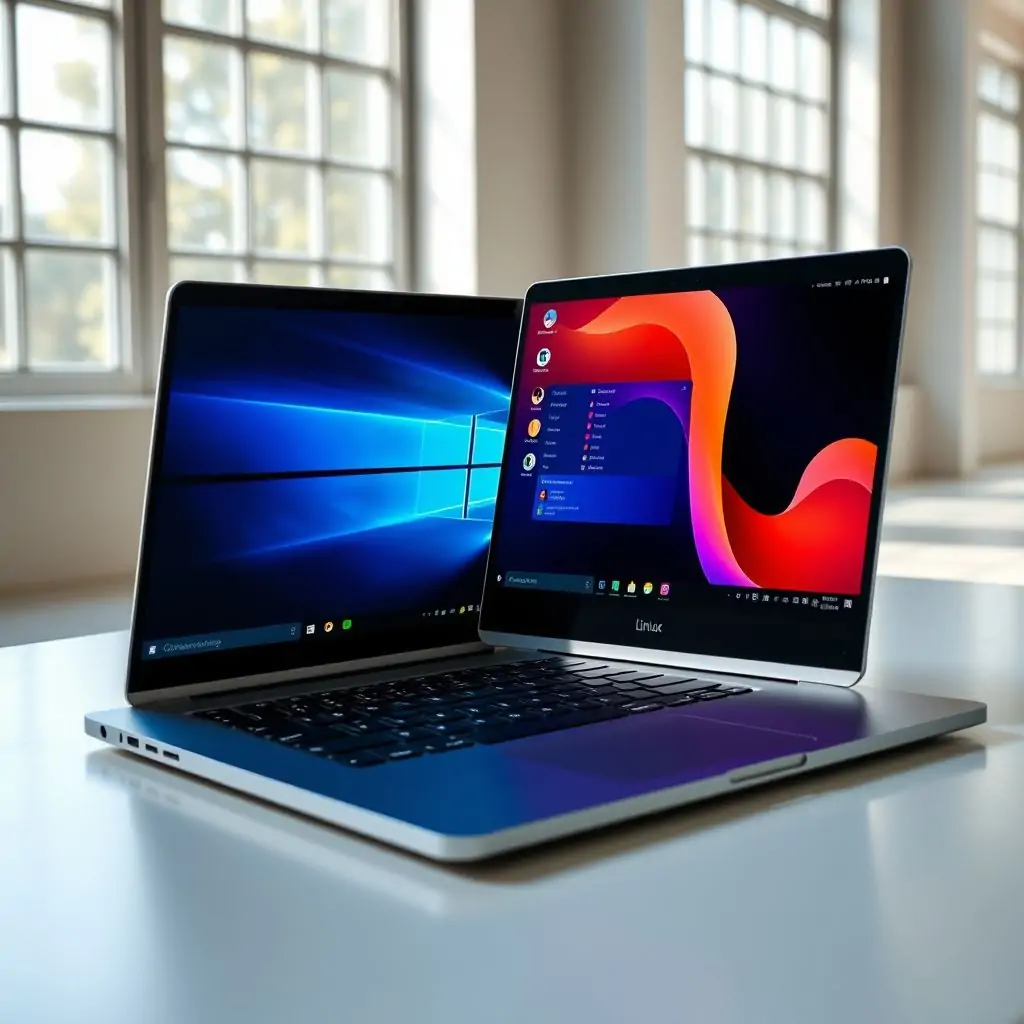
When it comes to How to Dual Boot Linux and Windows, many users find themselves torn between the stability and security of a Linux distribution and the necessity for certain applications or games available only on Windows. This guide aims to provide you with a comprehensive understanding of how to set up dual booting effectively, making sure your transition from one operating system to another is as seamless as possible.
Table of Contents
- Why Dual Boot Linux and Windows?
- Preparation for Dual Booting
- Backup Important Data Before Proceeding
- How to Dual Boot Linux and Windows: Step-by-Step Guide
- Managing Your Partitions Using GParted
- Installing GRUB to Manage Dual Booting
- Troubleshooting Common Issues During and After Installation
- Security Considerations for Dual Booted Systems
Why Dual Boot Linux and Windows?
Choosing to dual boot Linux and Windows can be an excellent decision if you require access to both operating systems for different purposes. For instance, many developers prefer the flexibility of a Linux environment, while gamers might need Windows to run their favorite titles. Understanding How to Dual Boot Linux and Windows is crucial in leveraging these environments without compromising on performance or functionality.
Common Use Cases for Dual Booting
The primary use cases include:
- Development: A Linux environment offers a vast array of development tools and libraries, making it ideal for software engineers.
- Gaming: Windows is the preferred platform for many gamers due to its support for DirectX and OpenGL, ensuring smoother gameplay experiences.
Preparation for Dual Booting
Before diving into the installation process of How to Dual Boot Linux and Windows, it’s essential to ensure that your hardware meets the minimum requirements. This includes having a dual-core processor or better, at least 4GB of RAM (8GB recommended), and sufficient free disk space.
Checking System Compatibility
Ensure that your computer supports BIOS/UEFI mode booting and has the necessary firmware settings configured. Many modern systems default to UEFI mode, which requires a specific approach during installation.
Selecting Linux Distributions
A variety of distributions are available such as Ubuntu, Fedora, or Mint. Each offers unique features that cater to different needs:
- Ubuntu: Known for its user-friendly interface and extensive software repository.
- Fedora: Often preferred by developers due to the inclusion of cutting-edge technologies.
Backup Important Data Before Proceeding
Data loss is a significant risk when partitioning your hard drive. Ensure you have backed up all important files and documents to an external storage device or cloud service before proceeding with How to Dual Boot Linux and Windows.
Using Cloning Software
Cloning software like Clonezilla can be particularly useful for backing up entire partitions, ensuring a full restore if needed.
How to Dual Boot Linux and Windows: Step-by-Step Guide
The actual installation process involves several critical steps. We’ll cover the entire procedure from creating bootable media to configuring GRUB.
Creating Bootable Media
Use a tool like Rufus (link) or UNetbootin for Windows, and Etcher for Linux users. This step is crucial in ensuring that the installation media accurately represents your chosen distribution.
Partitioning Your Disk
The next critical phase involves resizing existing partitions or creating new ones to allocate space for both operating systems. Use a tool like GParted (covered in detail later).
Managing Your Partitions Using GParted
One of the most efficient tools available for partition management is GParted. It provides a graphical interface that simplifies complex tasks such as resizing partitions and moving existing data.
Resizing Existing Partitions
To allocate space, shrink your Windows partition using GParted. This step ensures sufficient unallocated space for the Linux installation.
Creating New Partitions
After resizing, create a new partition specifically for Linux. Ensure there is enough room to accommodate both root and home partitions based on your usage requirements.
Installing GRUB to Manage Dual Booting
GRUB (GNU GRand Unified Bootloader) serves as the boot manager that allows users to choose between different operating systems during startup. Proper configuration ensures smooth switching without performance issues.
Configuring GRUB Settings
Edit the /etc/default/grub file to adjust settings such as timeout length and default boot entry. Be cautious with changes, especially those involving kernel versions or parameters.
Troubleshooting Common Issues During and After Installation
Dual booting can introduce several technical challenges:
Fixing Bootloader Errors
- GRUB Rescue Mode: This occurs if GRUB fails to load. To fix, manually specify the correct path to your Linux installation.
- Dual OS Recognition Issues: Sometimes, one operating system might overwrite the bootloader configuration of another. Use a live USB to reinstall GRUB in this scenario.
Security Considerations for Dual Booted Systems
Maintaining security across dual-boot systems requires proactive measures:
Ensuring Secure Communication Across OS Boundaries
Establish secure communication protocols between Linux and Windows, especially when sharing files or network resources.
Using Trusted Software Repositories for Package Management
Avoid installing software from unverified sources to minimize the risk of security breaches. Stick with official repositories whenever possible.
By following this guide on How to Dual Boot Linux and Windows, you will be well-equipped to manage both operating systems efficiently, enhancing your productivity and versatility in a multi-environment setup.

- Tool Engines
- How to Dual Boot Linux and Windows March 27, 2026
- Fix Common Boot Problems in Linux March 27, 2026
- How to Install Software on Ubuntu Linux March 27, 2026
- Best Linux Distributions for Beginners March 27, 2026
- Guide to macOS Terminal Commands for Beginners March 27, 2026