How to Create a Bootable USB Drive on Windows
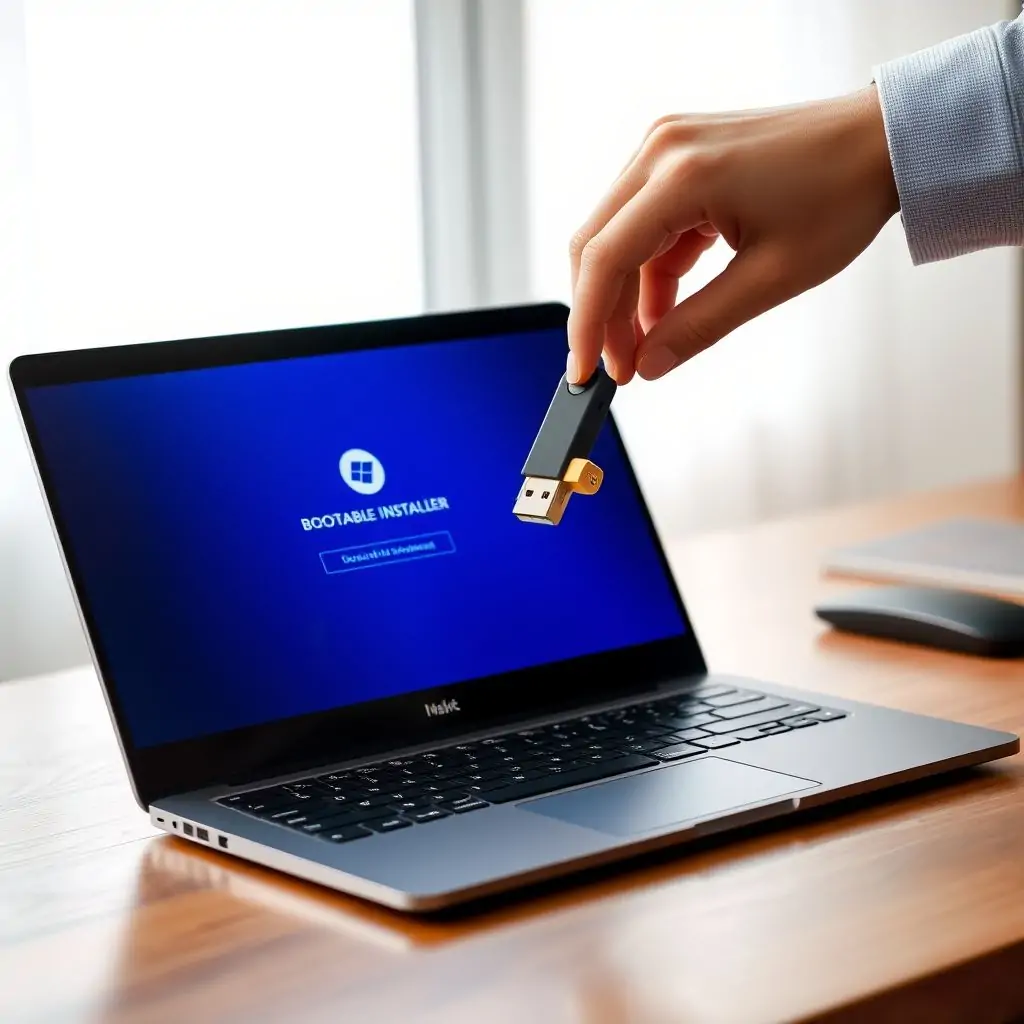
Creating a bootable USB drive on Windows can be an essential task for various purposes, such as installing or repairing operating systems, running diagnostic tools, or even setting up new devices. This guide will walk you through the steps to How to Create a Bootable USB Drive on Windows, ensuring that you have all the necessary information and tips at hand.
Table of Contents
- What is a Bootable USB Drive?
- How to Create a Bootable USB Drive on Windows
- Required Software and Tools
- Step-by-Step Guide: Creating the Bootable Drive
- Troubleshooting Common Issues
- Additional Tips for Optimizing Your USB Drive
- Security Considerations When Using a Bootable USB Drive
- Conclusion
What is a Bootable USB Drive?
A bootable USB drive, also known as a boot disk or startup disk, is an external storage device that can start up a computer’s operating system (OS) and run certain programs without having to install the OS on the hard drive. This is particularly useful for various scenarios like installing Windows, fixing issues with your current OS, transferring files between computers, or even running diagnostic tools.
For businesses and tech enthusiasts alike, understanding how to create a bootable USB drive can save time and headaches when dealing with hardware failures or software glitches.
How to Create a Bootable USB Drive on Windows
The process of creating a bootable USB drive involves several steps, including selecting the appropriate ISO file for your operating system (e.g., Windows 10), choosing a reliable tool to create the bootable disk, and ensuring that your computer is set up correctly to recognize and boot from the USB device.
Choosing the Right ISO File
Before you begin creating a bootable USB drive on Windows, it’s crucial to choose the right ISO file. This typically depends on your specific needs such as installing an OS or running diagnostics. You can download official ISO files from Microsoft for Windows 10/11.
Required Software and Tools
To create a bootable USB drive, you’ll need several tools:
- Rufus: A free utility that helps in creating bootable USB drives.
- A USB drive with at least 8GB of storage capacity. It’s recommended to use a fast and reliable USB 3.0 flash drive.
- The Windows ISO file you want to install or run from the USB drive.
Step-by-Back Step Guide: Creating the Bootable Drive
Follow these detailed steps to create a bootable USB drive on Windows:
- Download Rufus: Visit ToolEngines.com or the official Rufus website to download the latest version of Rufus. This tool simplifies the process of creating a bootable USB drive.
- Insert your USB drive: Insert the USB flash drive into an available USB port on your computer. Make sure it’s not being used by any other program or file transfer operation.
- Open Rufus and select the ISO file: Launch the Rufus application, and you’ll see options to configure the bootable USB creation process. Click on the “Select” button next to “Boot selection” and navigate to your Windows ISO file.
- Format the drive: Before proceeding with the creation of a bootable USB drive, make sure Rufus is set up correctly. The device should be automatically detected by Rufus. Click on “Start” and confirm that you want to create the bootable disk.
- Create the Bootable Drive: Once the ISO file is selected and the USB drive is properly formatted, click the “Start” button again to begin the process of creating your bootable USB drive. Rufus will then copy all necessary files onto the USB device.
- Eject the USB Drive: When the creation process completes successfully, Rufus will notify you that it’s ready to use. Eject the USB drive safely and proceed with the next steps.
Troubleshooting Common Issues
Sometimes, creating a bootable USB drive can encounter unexpected issues:
- USB Drive Not Detected: Ensure that your USB drive is properly connected and recognized by Windows. Try another port or computer if needed.
- Rufus Shows an Error Message: Verify that you have the correct ISO file for your intended purpose and ensure Rufus has administrative rights to format the drive.
Additional Tips for Optimizing Your USB Drive
To maximize performance and reliability of your bootable USB drive:
- Use High-Quality USB Drives: Opt for reputable brands known for durability and fast read/write speeds.
- Data Backup: Before creating a new bootable drive, ensure you have backed up any important data on the old one. You can use cloud services like Google Drive or Dropbox.
Security Considerations When Using a Bootable USB Drive
When using a bootable USB drive, especially for sensitive operations:
- Enable Encryption: Use encryption tools to secure your data.
- Avoid Malware Risks: Regularly scan your USB drives with antivirus software like Norton or McAfee.
Conclusion
In conclusion, learning How to Create a Bootable USB Drive on Windows can greatly enhance your IT problem-solving capabilities. Whether you need it for system recovery, OS installation, or running diagnostics, having a reliable bootable USB drive is invaluable.
This guide provided step-by-step instructions and expert tips to ensure that your process goes smoothly. Remember to always use high-quality tools like Rufus and consider security measures when handling sensitive data.

- Tool Engines
- How to Create a Bootable USB Drive on Windows March 27, 2026
- Best Ways to Speed Up a Slow Windows PC March 27, 2026
- How to Fix Blue Screen of Death in Windows March 27, 2026
- Top 25 Free Online Tools for SEO, Developers, and Daily Productivity March 26, 2026