Best Ways to Organize Apps on iPhone
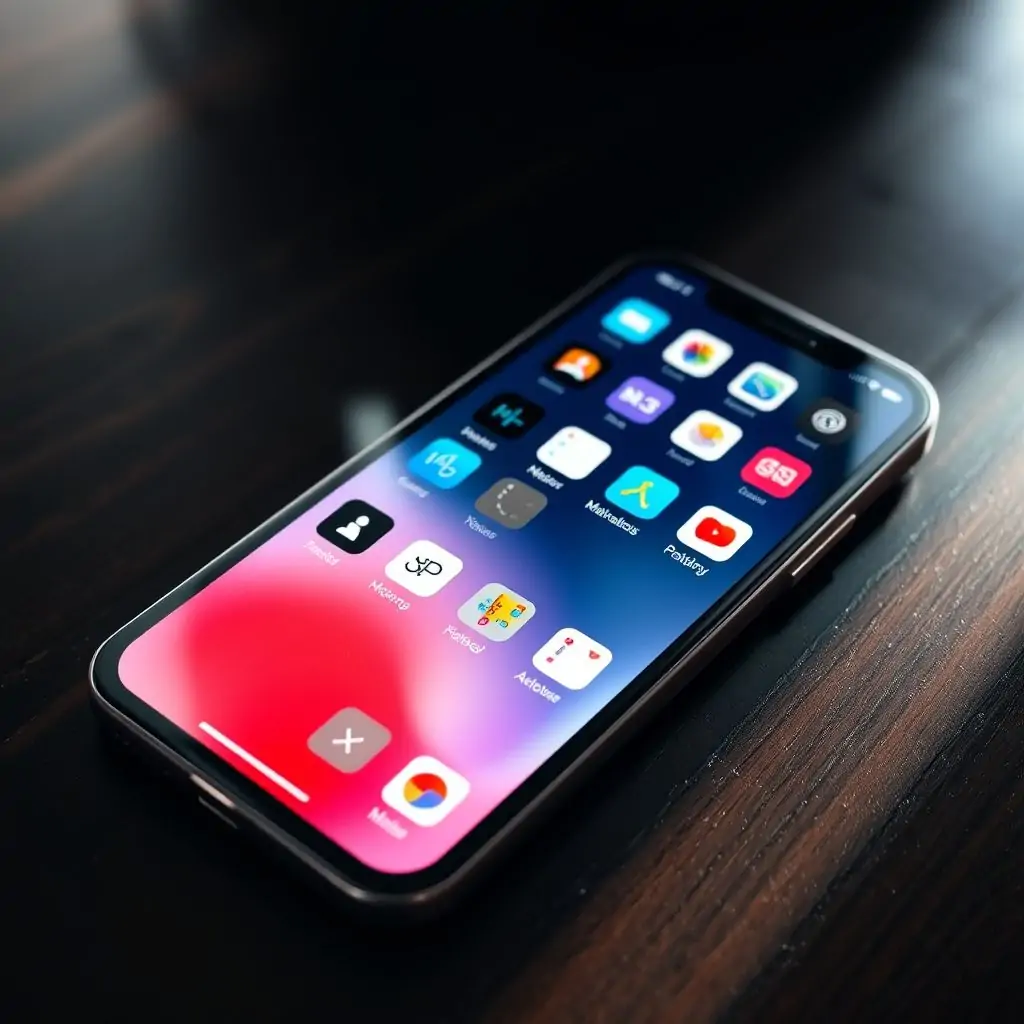
The iPhone has become an indispensable tool for managing our daily lives, from work to personal entertainment. With the growing number of apps available in the App Store, organizing them efficiently becomes a necessity. Finding the best ways to organize apps on iPhone can significantly enhance your user experience by making navigation easier and more intuitive. This article will provide you with detailed insights into how to optimize your app organization strategy.
- Why Organizing Apps Matters
- Best Ways to Organize Apps on iPhone
- Customizing Your Home Screen Layout
- Using Folders Effectively
- Automating App Organization with Third-party Tools
- Tips for Long-term Maintenance and Management
- Case Studies: Real-life Examples of Successful App Organization
Why Organizing Apps Matters
One of the primary reasons why organizing apps is crucial is that it helps to maintain a clutter-free environment on your iPhone. A well-organized app list can lead to faster access and retrieval of frequently used applications, which in turn boosts productivity and efficiency.
Enhancing Productivity
Organizing apps properly allows you to quickly find what you need without having to scroll through a long list. This is particularly beneficial during work hours when every second counts.
Improving User Experience
A tidy home screen can make your iPhone feel more personal and enjoyable to use. By arranging apps in a way that makes sense for you, you create an environment where finding tools is not only quick but also intuitive.
Best Ways to Organize Apps on iPhone
The best ways to organize apps on iPhone involve a combination of strategic planning and leveraging built-in features. Below are some effective methods:
Grouping by Functionality or Use Case
- Create folders for categories such as work, social media, entertainment, etc.
- Place frequently used apps on the first home screen for easy access.
- Consider grouping less-used but necessary applications together in a folder on subsequent screens.
Using Grid Layouts and Home Screen Sections
- Experiment with different grid sizes to see which layout works best for you. The default 4×5 grid can be adjusted to fit your needs.
- Create separate sections based on time of day or activity, such as a morning routine section and an evening relaxation section.
Customizing Your Home Screen Layout
Creating a personalized home screen layout can significantly improve your iPhone’s usability. Customization options range from changing the background to rearranging app icons:
Using Widgets and Live Tiles
- Add widgets for quick access to information like weather updates or news headlines.
- Utilize live tiles for real-time data such as stock prices or fitness metrics.
Adapting the Home Screen Based on Time of Day
The dynamic home screen feature allows you to switch between different layouts based on time and activity. For instance, a morning setup could include apps like Spotify for music and Google Maps for navigation, while an evening layout might prioritize social media or reading applications.
Using Folders Effectively
Folders are essential tools in managing a large number of apps:
Creating Meaningful Folder Names
- Choose folder names that reflect the content within, making them easy to identify.
- Avoid generic names like “Apps” or “Utilities”. Instead, opt for more descriptive labels such as “Productivity Tools”, “Entertainment Apps”, etc.
Organizing by App Functionality and Frequency of Use
- Place less frequently used apps in folders or on secondary screens to reduce clutter.
- Ensure that critical applications are easily accessible from your primary home screen.
Automating App Organization with Third-party Tools
In addition to Apple’s built-in features, several third-party tools can help streamline the process of organizing apps:
Exploring Automation Apps
- Apps like Shortcuts and Tasker allow you to create automated workflows that manage your app organization.
- These tools are especially useful for users with a large number of apps, where manual management becomes impractical.
Utilizing Customizable Home Screen Apps
- Consider using customizable home screen apps that offer features like dynamic layouts and shortcuts to frequently used functionalities within other apps.
- This can be particularly beneficial for power users who need a high degree of customization and flexibility.
Tips for Long-term Maintenance and Management
Maintaining an organized app system over time requires regular upkeep:
Regular Review and Curation
- Schedule periodic reviews of your app collection to delete outdated or unused applications.
- Consider whether new apps fit into existing categories or require the creation of a new folder.
Leveraging iCloud for Backup and Syncing
- Enable iCloud backups to ensure that your app organization is preserved across devices.
- Synchronize home screen layouts between multiple iOS devices to maintain consistency in your daily routine.
Case Studies: Real-life Examples of Successful App Organization
Understanding how others have approached organizing their apps can provide inspiration and practical insights:
Example 1: Personalized Daily Routines
- A marketing professional uses different sections on her home screen to reflect various stages of the day. For instance, a morning section with breakfast recipes and exercise apps transitions seamlessly into an afternoon work-centric layout featuring Slack and Trello.
Example 2: Multi-device Synchronization
- A student manages his home screen across multiple devices (iPhone, iPad) to maintain a consistent workflow. He uses iCloud syncing extensively to keep the same layout and app organization across all platforms.
Example 3: Maximizing Third-party Tools for Efficiency
- A freelance designer leverages automation apps like Shortcuts to create dynamic folders that adapt based on his current tasks. For example, a folder labeled “Current Projects” automatically adds relevant tools as he starts working on new projects.
By following these best practices and utilizing the available features and third-party tools effectively, you can greatly enhance your iPhone’s usability and productivity. Remember to regularly review and curate your app collection to ensure that it remains personalized and optimized for your needs.

- Tool Engines
- Best Ways to Organize Apps on iPhone March 28, 2026
- How to Reset iPhone to Factory Settings March 27, 2026
- Complete Guide to iPhone Keyboard Shortcuts March 27, 2026
- Troubleshooting WiFi Issues on iOS March 27, 2026
- How to Free Up Storage Space on iPhone March 27, 2026