How to Fix Printer Not Working in Windows
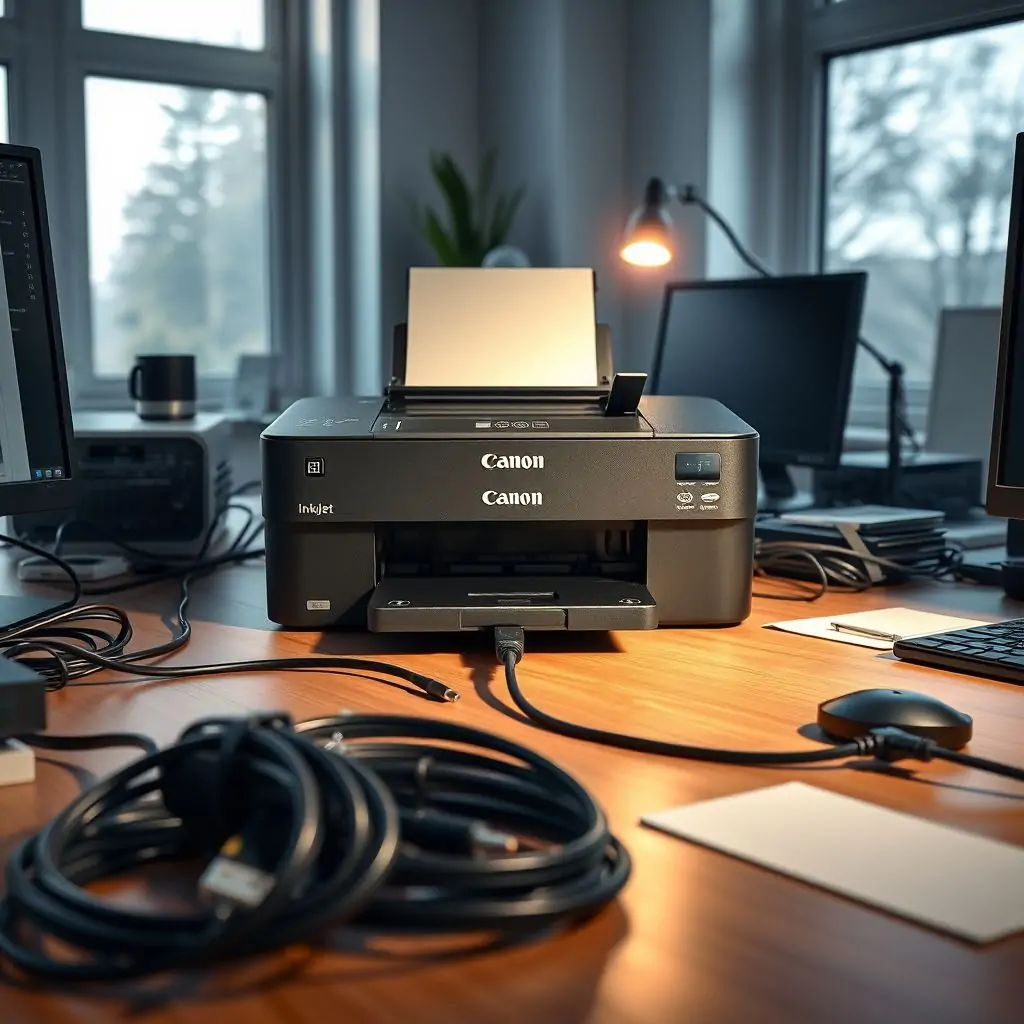
Printer issues can be frustrating, especially when you are in a rush to print an important document or presentation slides. When your printer stops working on Windows, it can affect your productivity significantly. This guide is designed to help you understand and resolve common printer problems effectively. We will walk you through various troubleshooting steps that you can perform without needing any technical expertise.
Table of Contents
- Introduction to Troubleshooting Printers in Windows
- How to Fix Printer Not Working in Windows: Basic Steps
Advanced Troubleshooting with ToolEngines
- Understanding Printer Driver Issues in Windows
- Network Connectivity Problems and Solutions for Printers
- Printer Spooler Service: A Vital Component for Printing in Windows
- Common Error Messages and Their Fixes
- Conclusion and Final Tips on Printer Troubleshooting
Introduction to Troubleshooting Printers in Windows
When a printer stops working in Windows, it can stem from a variety of issues. Common causes include driver problems, network connectivity issues, or malfunctioning hardware. This guide aims to provide you with a comprehensive overview and practical steps on how to fix printer not working in windows.
How to Fix Printer Not Working in Windows: Basic Steps
Before diving into more complex troubleshooting techniques, it’s important to try some basic fixes that can often resolve the issue swiftly. Follow these simple steps:
- Check Physical Connections: Ensure that all cables are securely connected and there is no physical obstruction between your printer and computer.
- Restart Printer: Turn off the printer, wait for a minute or two, then turn it back on. This can often clear temporary glitches.
- Check Paper Tray: Make sure that there is enough paper in the tray and no jammed sheets blocking the path.
Understanding Printer Driver Issues in Windows
Driver problems are among the most common reasons why a printer stops working. Drivers act as a bridge between your computer’s operating system and hardware, so any misconfiguration here can lead to printing issues.
- Update or Reinstall Printers: Go to Control Panel > Devices and Printers, right-click on the problematic printer, then choose “Printer Properties” to check for updates. If updates are not available, consider uninstalling and reinstalling the driver from the manufacturer’s website.
- Verify Driver Compatibility: Ensure that your printer drivers match the version of Windows you’re using. For example, a driver designed for Windows XP won’t work properly on a Windows 10 system.
Network Connectivity Problems and Solutions for Printers
If your printer is connected to a network, issues might arise due to connectivity problems rather than local settings. Here’s how you can troubleshoot:
- Check Network Cables: Ensure that all cables are properly plugged into the router or switch and the printer.
- Verify IP Configuration: Use Command Prompt commands like ‘ipconfig’ to check if your device has an assigned IP address. If not, you may need to manually configure it through the printer’s settings menu.
Printer Spooler Service: A Vital Component for Printing in Windows
The Printer Spooler service is a critical component of Windows that manages print jobs. If this service isn’t running, your prints won’t be processed correctly.
- Start the Spooler Service: Open Services via Run (type ‘services.msc’ in Start menu) and locate the Print Spooler. Right-click on it to start and set its startup type as automatic if needed.
Common Error Messages and Their Fixes
Error messages are often your first clue about what might be wrong with your printer. Below is a list of frequent errors along with suggested fixes:
- ERROR: Printing Queue Full: This occurs when the print queue has too many jobs pending processing. Clear or delete old entries to free up space.
- WARNING: Insufficient Disk Space: Ensure that your system drive has enough free storage for temporary files used during printing.
Conclusion and Final Tips on Printer Troubleshooting
Troubleshooting a non-functioning printer in Windows requires patience and methodical investigation. By following the steps outlined above, you can effectively identify and resolve issues related to physical connections, drivers, network settings, and system services.
Remember that regular maintenance of your printing hardware and software helps prevent many common problems before they arise.
In addition to these tips, it’s always beneficial to stay updated with the latest firmware updates from printer manufacturers. For more detailed information on specific models or advanced troubleshooting tools, visit ToolEngines. This site offers comprehensive guides and diagnostic solutions that can further enhance your ability to manage printing issues efficiently.

- Tool Engines
- How to Maintain Your Computer for Long Term Use March 28, 2026
- Complete Guide to Data Recovery Tools March 28, 2026
- How to Set Up Two Factor Authentication Everywhere March 28, 2026
- Best File Managers for Windows, Mac and Linux March 28, 2026
- Guide to Linux Desktop Environments March 28, 2026