Guide to Managing Windows Startup Programs
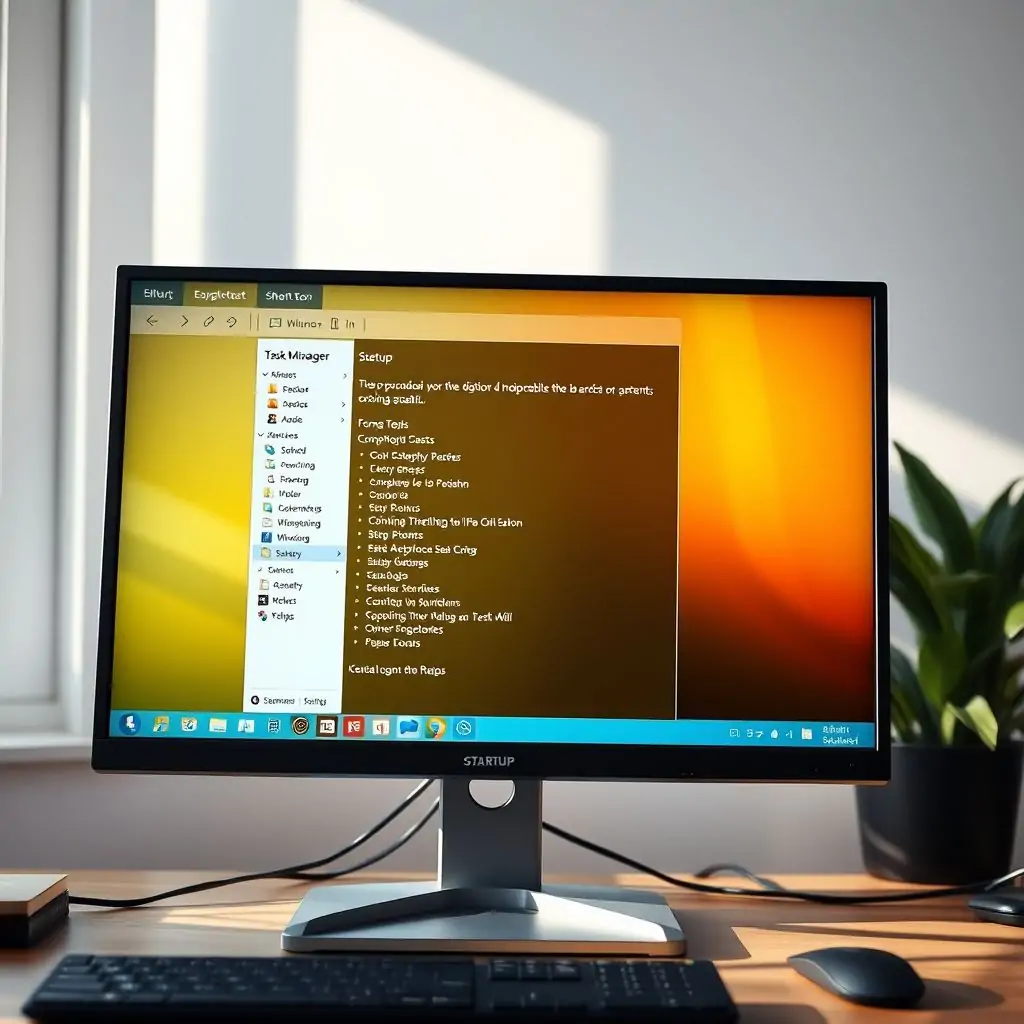
The Guide to Managing Windows Startup Programs offers a comprehensive look at how to optimize your computer’s performance by controlling which applications start automatically when you boot up your system. This guide will walk you through the process of identifying, managing, and optimizing startup programs in Windows, providing you with detailed steps and expert advice on maintaining a fast and efficient computing environment.
- Introduction to Managing Startup Programs
- Understanding the Impact of Startup Programs
- Tools for Monitoring Startup Programs
- Common Startup Program Issues and Solutions
- Best Practices for Managing Startup Programs
- Advanced Techniques: Using Task Scheduler
- Security Considerations in Windows Startup Management
- Conclusion: Maintaining a Lean and Efficient System
Introduction to Managing Startup Programs
The Guide to Managing Windows Startup Programs is crucial for any user looking to enhance their system’s performance. By controlling which applications launch at startup, you can significantly reduce the time it takes for your computer to boot up and improve overall responsiveness. This section introduces the fundamental concepts of managing startup programs and sets the stage for more detailed exploration.
Understanding how Windows handles startup processes is key to effectively managing them. Each program that loads during startup consumes resources such as CPU, memory, and disk I/O, which can impact your system’s performance negatively if not managed properly.
Understanding the Impact of Startup Programs
In this section, we delve into the specific ways that startup programs affect system performance. We discuss how these applications can slow down boot times and consume valuable resources, potentially leading to issues like sluggish response time or overheating.
Common Issues Caused by Startup Programs
One of the most common issues caused by excessive startup programs is prolonged boot-up times. As more applications are added to the list, the system must spend more time initializing them before it becomes fully usable.
Common Startup Program Issues and Solutions
Identifying problematic startup programs can be challenging but crucial for maintaining system efficiency. This section explores common issues such as high resource usage, unnecessary processes, and potential security risks posed by third-party software.
Troubleshooting Tips
To address these problems effectively, it’s important to follow specific troubleshooting steps. For instance, identifying which applications are causing delays or conflicts during the startup process can be done through the Task Manager’s Startup tab.
Best Practices for Managing Startup Programs
This section offers a detailed set of best practices designed to optimize your system’s performance by managing startup programs efficiently. We provide step-by-step instructions on how to disable unnecessary applications, monitor resource usage, and prioritize essential services.
Identifying Non-Essential Programs
The first step in optimizing your system is identifying which programs are truly necessary at startup. Many software packages include options for automatic updates or background processes that aren’t critical to daily operations and can be safely disabled.
Advanced Techniques: Using Task Scheduler
For users seeking more control over their system’s behavior, the Windows Task Scheduler offers advanced features for managing startup programs. This section explains how to use this tool effectively, including setting up custom task triggers and conditions.
Setting Up Custom Tasks
By leveraging the power of Task Scheduler, you can create customized rules that dictate when certain applications should start. This allows for fine-tuning your system’s startup sequence to maximize efficiency and minimize unnecessary resource consumption.
Security Considerations in Windows Startup Management
Managing startup programs also involves considerations related to security. In this section, we discuss potential risks associated with unauthorized software running at startup and strategies for mitigating these threats.
Identifying Security Risks
A common risk is malware that disguises itself as legitimate software and runs automatically during system boot-up. To address this, it’s important to regularly scan startup programs using reputable antivirus tools provided by ToolEngines or other trusted sources.
Conclusion: Maintaining a Lean and Efficient System
The Guide to Managing Windows Startup Programs underscores the importance of proactive management in ensuring that your system remains both fast and secure. By following the strategies outlined here, users can significantly enhance their computing experience while safeguarding against potential performance bottlenecks.

- Tool Engines
- How to Maintain Your Computer for Long Term Use March 28, 2026
- Complete Guide to Data Recovery Tools March 28, 2026
- How to Set Up Two Factor Authentication Everywhere March 28, 2026
- Best File Managers for Windows, Mac and Linux March 28, 2026
- Guide to Linux Desktop Environments March 28, 2026