Guide to File Synchronization Across Devices
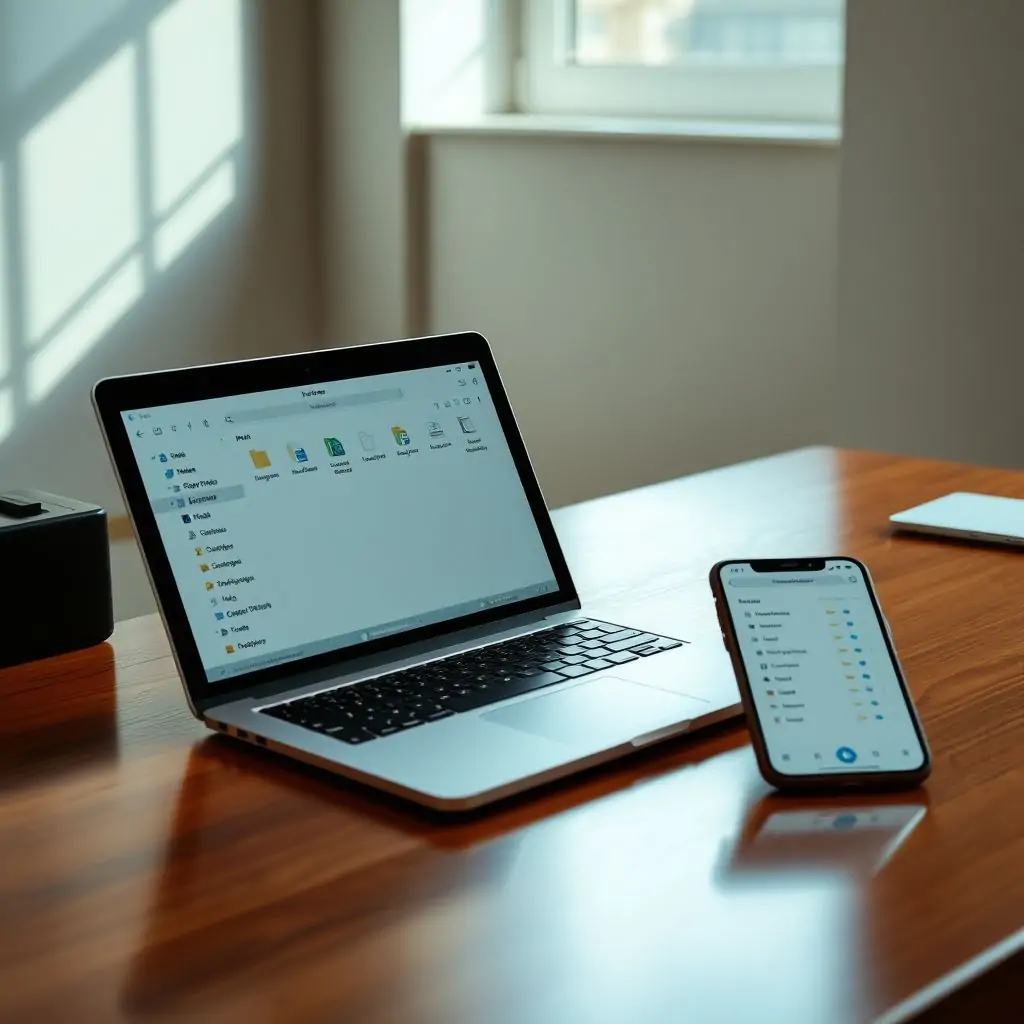
The Guide to File Synchronization Across Devices provides a comprehensive overview of how users can effectively manage their files across multiple devices. As digital nomads increasingly rely on cloud-based services, understanding the intricacies of file synchronization has become crucial for maintaining productivity and data integrity. This guide will walk you through various aspects of managing your files in today’s multi-device environment.
- Introduction to File Synchronization
- Why Use a Guide to File Synchronization Across Devices?
- Key Features of Popular File Sync Tools
- Setting Up Your First Sync Solution
- Best Practices for Secure and Efficient Synchronization
- Synchronizing Files Between Desktops, Laptops, and Smartphones
- Advanced Techniques: Automating File Synchronization
- Troubleshooting Common Issues in Sync Solutions
Introduction to File Synchronization
File synchronization is the process of ensuring that data files are identical across multiple devices and locations. This concept is vital for anyone who uses more than one device or works with teams where collaboration is essential. As businesses grow, so does their reliance on digital tools for file management. According to Tool Engines, a leading platform for software reviews, the best practices in file synchronization can significantly enhance operational efficiency and reduce the risk of data loss.
Why Use a Guide to File Synchronization Across Devices?
Given the complexity of modern digital workflows, a comprehensive guide like this one serves as an essential resource. It not only outlines basic setup instructions but also delves into advanced configurations and troubleshooting techniques that are necessary for robust file management systems. The Guide to File Synchronization Across Devices aims to equip readers with the knowledge they need to make informed decisions about which tools to use and how best to configure them.
Understanding Basic Concepts
To start, it’s crucial to understand key concepts such as cloud storage vs. local backup systems. Cloud solutions offer convenience but may introduce privacy concerns, while local backups ensure data security but require manual management of updates and synchronization.
Key Features of Popular File Sync Tools
There are numerous tools available for file synchronization, each with its own set of features. Some popular options include Dropbox, Google Drive, Microsoft OneDrive, and Synology Cloud Station. Each tool offers unique capabilities such as version control, offline access, and encryption.
Dropbox
Dropbox is renowned for its user-friendly interface and robust security features. It supports real-time collaboration and integrates seamlessly with other services like Google Drive through third-party apps.
Google Drive
Google Drive provides extensive storage space and strong integration with Google Workspace tools, making it ideal for businesses that already use Gmail or Docs extensively.
Microsoft OneDrive
OneDrive offers tight integration with Microsoft Office products, enabling easy sharing of Word documents, Excel spreadsheets, and PowerPoint presentations.
Setting Up Your First Sync Solution
The initial setup process varies depending on the chosen tool but generally involves downloading an app from your device’s app store or website. Follow these Pro Tips:
- Choose a cloud provider based on compatibility with existing software and hardware.
- Select directories for synchronization that contain files you frequently access across devices.
- Enable notifications to be informed about new file versions or changes in real-time.
Best Practices for Secure and Efficient Synchronization
Maintaining security while ensuring efficient synchronization requires careful consideration. Here are some best practices:
- Implement strong passwords and enable two-factor authentication (2FA).
- Regularly review access controls to ensure only authorized personnel have rights to sensitive files.
- Utilize encryption features offered by sync tools to protect data during transit.
Leveraging Cloud Storage for Business Needs
For businesses, leveraging cloud storage involves more than just file syncing. It includes considerations like data retention policies and compliance with industry regulations such as GDPR or HIPAA.
Synchronizing Files Between Desktops, Laptops, and Smartphones
Synchronization across different devices can be accomplished using cross-platform tools that support multiple operating systems. Here’s how you might approach it:
- Ensure all devices have the latest versions of your chosen sync tool.
- Configure shared folders on each device to mirror the same directories.
- Test the setup by making changes on one device and verifying they reflect on others.
Challenges in Multi-Device Environments
The main challenge often lies in managing conflicts when multiple users edit files simultaneously. Tools like Google Drive offer conflict resolution mechanisms to handle these scenarios gracefully.
Advanced Techniques: Automating File Synchronization
Automating synchronization can save time and reduce manual intervention. Most advanced tools allow scripting for automated backups or scheduled syncs, which is particularly useful in large enterprises where managing thousands of files manually would be impractical.
Using Task Schedulers with Sync Tools
Windows Task Scheduler or Cron jobs on Linux systems can trigger synchronization tasks at specific intervals without user intervention.
Troubleshooting Common Issues in Sync Solutions
Troubleshooting common issues like connectivity problems, sync delays, and data corruption is crucial for maintaining a smooth workflow. Here are some tips:
- Check internet connection quality to ensure stable synchronization.
- Clear cache files periodically if experiencing performance slowdowns.
- Contact customer support if facing persistent errors that you cannot resolve.
Seeking Help from Community Forums and Support Teams
If internal solutions do not resolve your issues, seeking advice from community forums or reaching out to official support teams can provide additional insights. Websites like Stack Overflow offer a wealth of information on resolving specific technical challenges related to file synchronization.
By following the guidelines provided in this Guide to File Synchronization Across Devices, you’ll be well-equipped to manage your digital assets efficiently and securely across all devices.

- Tool Engines
- Guide to File Synchronization Across Devices April 10, 2026
- Best Tools for Remote Team Collaboration April 10, 2026
- How to Build Your Own Productivity System April 10, 2026
- Complete Guide to Using Markdown Everywhere April 10, 2026
- Best Password Manager Setup Guide April 10, 2026