Complete Guide to Notion Advanced Features
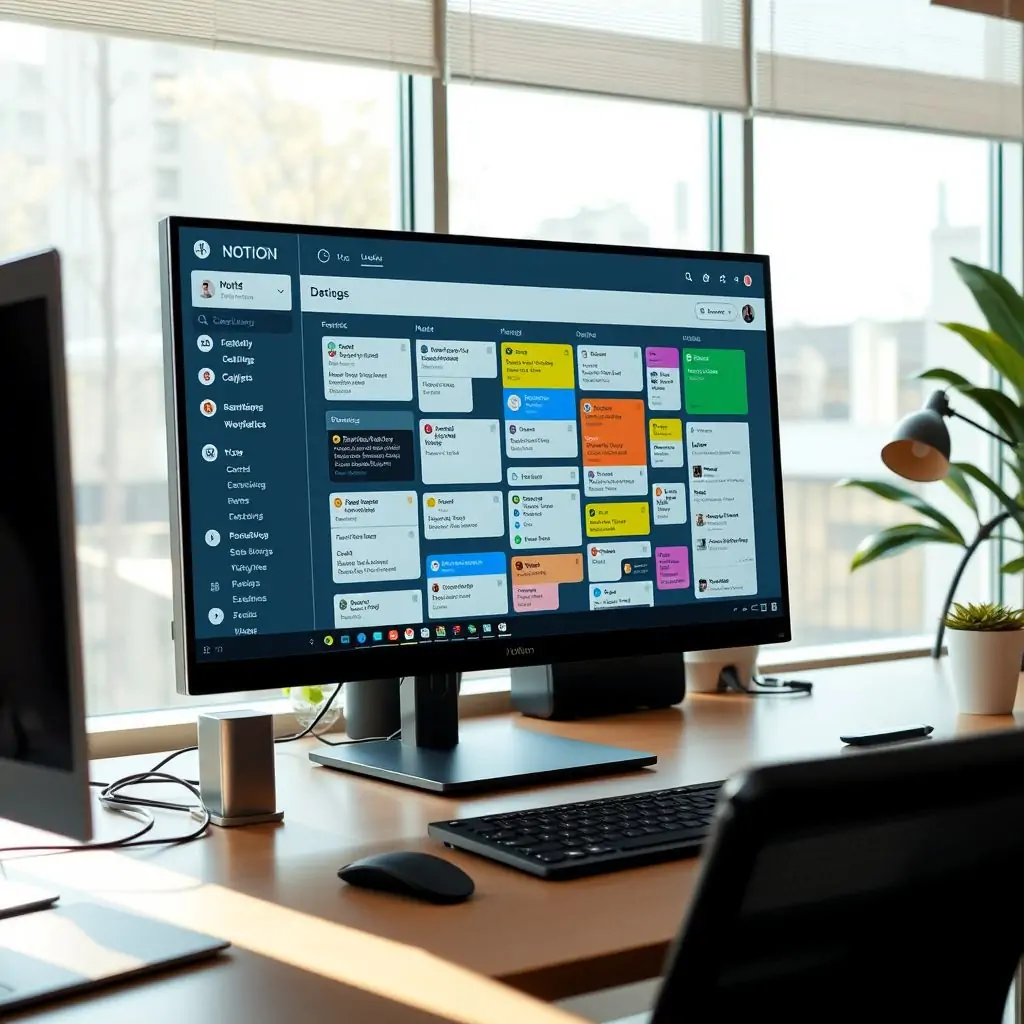
The Complete Guide to Notion Advanced Features is an essential resource for anyone looking to maximize their productivity with this versatile tool. From database integrations to template creation, Notion offers a myriad of advanced features that can significantly enhance your workflow and organizational capabilities. This guide delves into the intricacies of these features, providing detailed explanations, practical examples, and expert insights.
Introduction
The Complete Guide to Notion Advanced Features will walk you through the lesser-known but powerful tools that Notion offers beyond its basic functionalities. Understanding and implementing these advanced features can transform how you manage your projects, keep track of tasks, and store information.
- Introduction
- Setting Up Notion Databases
- Leveraging Template Features
- Customizing Pages and Blocks
- Integrating with Third Party Tools
- Notion Workspaces and Collaboration
- Advanced Search Features
- Conclusion
Setting Up Notion Databases
Notion databases are a powerful feature that allows you to manage complex data structures, making it easy to track projects, tasks, and more. To set up a database, start by creating a new page or modifying an existing one.
Types of Databases
Notion supports multiple types of databases, each designed for different needs:
- Table Database: Ideal for organizing tasks and projects with a clear view of progress.
- List Database: Great for lists of items that don’t require extensive detail but need organization.
- Board Database: Perfect for visual project management, allowing you to move items through different stages easily.
For a deeper dive into each type and their specific uses, visit ToolEngines.
How to Create a Database
- Create a new page or modify an existing one.
- Click on the “Add Block” button and select “Database.”
- Select the type of database you want to create based on your needs.
- Add columns to tailor the database to specific requirements, such as task title, due date, assignee, etc.
- Start adding entries or tasks into your newly created database.
Leveraging Template Features
Notion templates are pre-designed pages that allow you to quickly start projects and tasks without the need for lengthy setup. They save time by providing a structured starting point tailored to specific needs.
Creating Custom Templates
To create your own custom template, follow these steps:
- Design the layout of your page with all necessary sections and content blocks.
- Once satisfied with the design, click on “File” in the top menu bar.
- Select “Save as Template.”
- Name your template according to its purpose (e.g., Personal Task Manager).
- Choose whether you want this template to be available for everyone or just for yourself.
Using Existing Templates
Notion offers a variety of built-in templates that cover everything from daily journals and task lists to more complex project management workflows:
- Daily Journal: A structured format for logging your day-to-day activities.
- Blogging Template: Perfect for content creators looking to organize their writing process.
- Business Templates: Useful for teams and organizations managing projects, tasks, and workflows efficiently.
Customizing Pages and Blocks
Customization in Notion is one of its strongest features. Whether you’re creating a personal dashboard or setting up complex project management systems, understanding how to customize pages and blocks can greatly enhance your productivity.
Modifying Page Settings
- Select the page you wish to modify.
- Click on “More” in the top menu bar.
- In the dropdown, select “Page Properties.”
- Edit or add properties such as cover images, descriptions, parent pages, etc.
Custom Block Styles
Blocks are the building blocks of Notion. Customize them to suit your needs:
- Text: Adjust text size, color, and alignment.
- Headers: Create section headers with varying levels of hierarchy (H1, H2).
- To-Do Lists & Tables: Add checkmarks, dates, tags, and more to manage tasks efficiently.
Integrating with Third Party Tools
Notion’s integration capabilities allow you to connect it seamlessly with other tools and platforms, enhancing its utility for task management, project tracking, and collaboration. Integrations can be set up through the official Notion Marketplace.
Popular Integrations
- Calendar: Sync events and deadlines from your Notion databases directly to your Google Calendar or Outlook calendar.
- Email: Turn emails into actionable items within Notion, streamlining communication management.
- Slack & Trello: Connect task lists and boards to maintain consistency across multiple platforms.
How to Set Up Integrations
- Navigate to the Notion Marketplace by clicking on “Apps” in your sidebar or typing it directly into the search bar.
- Find and click on the desired app you wish to integrate with.
- Follow the setup instructions provided by the integration provider, typically involving granting permissions for data access.
Notion Workspaces and Collaboration
Workspaces in Notion facilitate collaboration among team members. By creating workspaces, you can ensure that everyone has the necessary access to shared documents while maintaining privacy for personal pages.
Creating a Workspace
- In your Notion app or website, go to “File” and then select “Workspaces.”
- Click on “Create New Workspace.” Name it according to the team/project you’re working with.
- Add members by entering their email addresses and assigning them roles (Admin, Editor, Viewer).
Collaborative Workflows
Workspaces are ideal for collaborative workflows. Members can share pages, assign tasks, and track progress within a structured environment:
- Task Assignment: Easily delegate responsibilities to team members by using the “Assigned To” field.
- Real-Time Editing: Multiple people can edit documents simultaneously without conflicts or version control issues.
Advanced Search Features
The advanced search capabilities of Notion are a powerful tool for navigating large amounts of data efficiently. By mastering these features, you can quickly find the information you need and enhance your productivity.
Search Syntax
- @username: Finds all pages or tasks assigned to a specific user.
- #tag: Retrieves items tagged with a particular label.
- page.title: Searches within the title of any page for specified text.
Shortcut Keys
To expedite your search experience, Notion offers several keyboard shortcuts that you can use to perform searches more quickly:
- Command + K (Mac) or Ctrl + K (Windows): Opens the quick find box.
- Command + Shift + F (Mac) or Ctrl + Shift + F (Windows): Triggers a full-page search.
Conclusion
The Complete Guide to Notion Advanced Features offers an in-depth look at the more sophisticated aspects of this powerful tool. By mastering these features, you can elevate your productivity and streamline workflows, making Notion a cornerstone of your daily operations. Remember that practice is key to fully leveraging all that Notion has to offer.

- Tool Engines
- Complete Guide to Notion Advanced Features April 10, 2026
- How to Use Obsidian for Personal Knowledge Management April 10, 2026
- Best Free Alternatives to Microsoft Office April 10, 2026
- Guide to iOS Accessibility Features April 10, 2026
- Fix Face ID Not Working Properly April 10, 2026