How to Customize Lock Screen on iOS
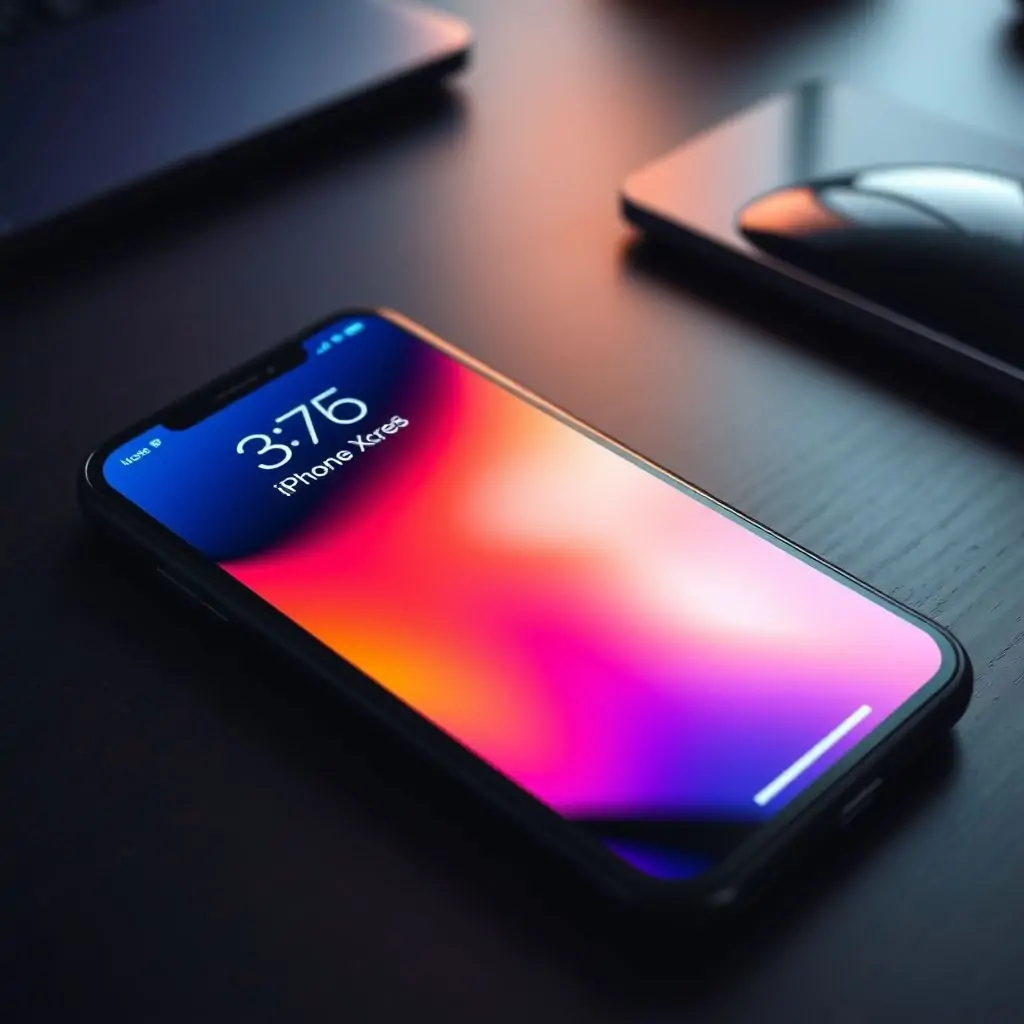
Customizing your device’s lock screen can make it more personalized and functional for your daily use. For iOS users, there are several options to enhance the aesthetics of their lock screen or add useful features that streamline their workflow. This article will guide you through “How to Customize Lock Screen on iOS”, providing detailed instructions and practical insights to help you optimize this crucial interface.
Table of Contents
- Introduction: Why Customizing Your Lock Screen Matters
- How to Customize Lock Screen on iOS: Basic Steps
- Advanced Customization Options for the Lock Screen
- Adding Widgets and Shortcuts
- Using Dynamic and Static Wallpapers
- Troubleshooting Common Issues When Customizing the Lock Screen
- Conclusion: Maximizing Your iOS Experience Through Personalization
Introduction: Why Customizing Your Lock Screen Matters
Your lock screen is often the first thing you see each morning and the last before bed. It serves as a gateway to your digital life, so it’s important to make it functional yet aesthetically pleasing. How to Customize Lock Screen on iOS involves more than just changing the wallpaper; it includes adding widgets, configuring shortcuts, and setting up notifications that matter most to you.
The primary benefits of customizing your lock screen include increased productivity, improved accessibility, and personalization to suit individual preferences. By tailoring the look and feel of your iOS device’s initial interface, you can make everyday interactions with technology smoother and more enjoyable.
How to Customize Lock Screen on iOS: Basic Steps
To start customizing your lock screen on an iPhone running iOS 16 or later, follow these steps:
- Swipe Down the Lock Screen: When your phone is locked, swipe down from the top of the screen to reveal additional customization options.
- Select Customize Lock Screen: Click on this option at the top of the screen to access more in-depth settings for personalization.
- Choose Your Wallpaper: Here you can pick a dynamic or static wallpaper, with the ability to customize it using a variety of filters and effects. Dynamic wallpapers change based on time of day, date, or activity (such as when you receive a call).
- Add Widgets: You can add widgets such as calendar, weather, music controls, battery percentage, clock, and more.
- Set Up Notification Styles: Customize which notifications appear on your lock screen by selecting specific apps or muting them entirely if needed.
Pro Tip: Enable Focus Modes for Customized Lock Screen Notifications
Focus modes allow you to control what notifications are displayed based on the context of your day. For example, you can set up a during work hours focus mode that only shows notifications from certain apps.
Advanced Customization Options for the Lock Screen
Beyond basic customization options, iOS offers several advanced features to further tailor your lock screen experience:
- Daily and Hourly Complications: These provide a snapshot of useful information at specific times or daily. They are especially handy for those who use the watchOS-like design introduced in iOS 16.
- Mutual Wallpapers: You can set up shared wallpaper between two devices, making it easy to synchronize your aesthetic across multiple gadgets.
- Bundled Widgets: These allow you to combine information from different apps into a single widget for streamlined visibility on the lock screen.
Pro Tip: Utilize Multiple Lock Screens with Distinct Personalities
Create multiple lock screens, each tailored to different moods or contexts. For instance, you might have a minimalist design for weekdays and a vibrant theme reserved for weekends.
Adding Widgets and Shortcuts
The lock screen’s utility can be dramatically enhanced by integrating useful widgets and quick access shortcuts:
- Widgets: Drag and drop to place widgets on your lock screen. This includes the ability to add a clock, calendar events, upcoming weather updates, battery level indicators, and more.
- Shortcuts: Access frequently used apps or settings directly from the lock screen by adding them as shortcuts. These can range from turning Wi-Fi on/off, adjusting display brightness, checking emails quickly, or launching any application instantly.
Pro Tip: Integrate Third-party Apps for Enhanced Functionality
Leverage third-party apps through the Shortcuts app to extend your lock screen’s capabilities even further. For example, use an alarm clock widget or integrate social media notifications.
Using Dynamic and Static Wallpapers
The choice between dynamic and static wallpapers can significantly impact how you perceive and interact with your iOS device:
- Dynamic Wallpapers: These change automatically based on various factors such as time of day, activity (like receiving a call), or even the current date. They offer a visually engaging experience that keeps your lock screen fresh.
- Static Wallpapers: Choose from a wide array of static images and apply filters to create unique visual themes. Static wallpapers provide consistent aesthetics throughout the day without any automatic changes.
Pro Tip: Create Personalized Wallpaper Combinations
Mix different elements like photos, colors, or patterns to craft a truly unique wallpaper that reflects your personality. You can even combine dynamic effects with static backgrounds for the best of both worlds.
Troubleshooting Common Issues When Customizing the Lock Screen
While customizing your lock screen is generally straightforward, you may encounter some common issues:
- Widgets Not Appearing as Expected: Make sure that each widget has been properly added and configured. Sometimes, widgets need to be enabled in the app settings of their respective applications.
- Customization Settings Not Saving: Check if your device is running the latest version of iOS. If not, update it as older versions might lack certain customization features or have bugs that prevent changes from being saved.
- Performance Issues with Dynamic Wallpapers: High-resolution dynamic wallpapers can sometimes slow down performance due to their complexity and frequent updates. Consider switching to a lower resolution option or static wallpaper if you experience lagging issues.
Pro Tip: Use Tool Engines for Optimization Tools
To resolve performance-related problems, utilize tools available from platforms like Tool Engines, which can help optimize your device’s speed and responsiveness.
Conclusion: Maximizing Your iOS Experience Through Personalization
The ability to customize the lock screen on an iOS device is not just a cosmetic preference but a powerful tool for enhancing both usability and personal satisfaction. By following “How to Customize Lock Screen on iOS”, users can create an interface that aligns perfectly with their needs, making daily interactions more efficient and enjoyable.
Remember, while customization offers extensive possibilities, it’s also essential to maintain a balance between aesthetics and functionality. Ensure your lock screen remains clutter-free yet informative, providing you with quick access to the most relevant information at any given moment.
Note: For further guidance on optimizing your iOS experience beyond the lock screen, consider exploring articles from high-authority sources such as Investopedia.

- Tool Engines
- Complete Guide to Secure File Sharing Methods April 11, 2026
- Best Tools for Mind Mapping and Brainstorming April 11, 2026
- How to Set Up Automated File Organization April 11, 2026
- Top Free Translation Tools Comparison April 11, 2026
- Guide to Digital Minimalism on Your Devices April 11, 2026