How to Customize KDE Plasma Desktop
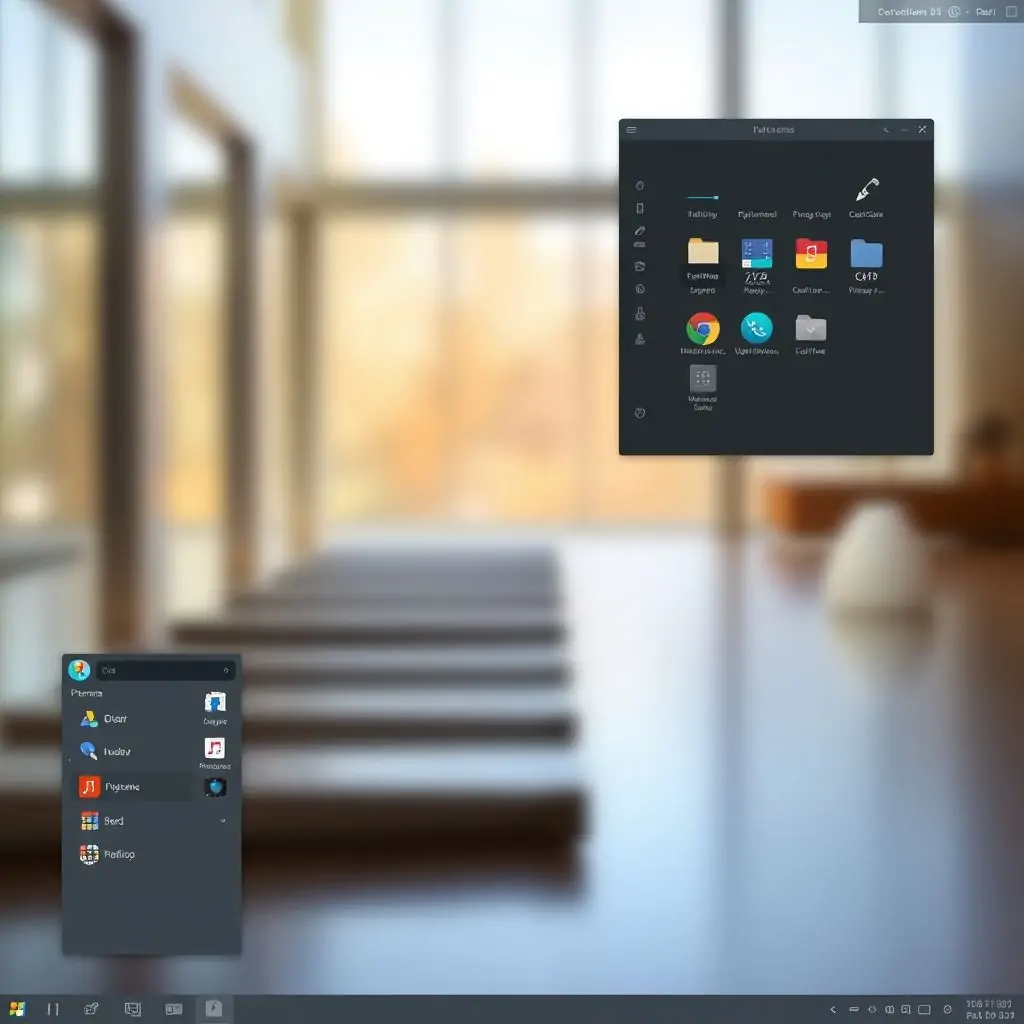
Customizing your desktop environment can significantly enhance your productivity and make using your computer a more enjoyable experience. If you are using KDE Plasma, one of the most feature-rich desktop environments available for Linux distributions, learning “how to customize KDE Plasma Desktop” is essential. This guide will walk you through several techniques and tips to personalize your KDE Plasma setup, making it uniquely yours.
Table of Contents
- Introduction: Why Customize Your KDE Plasma Desktop?
- How to Customize KDE Plasma Desktop – An Overview
- Getting Familiar with the KDE System Settings
- Customizing the Look and Feel of Your Workspace
- Enhancing Functionality Through Widgets and Activities
- Fine-Tuning Performance: Tips and Tricks
- Security Considerations When Customizing KDE Plasma
- Conclusion: Final Thoughts on Personalizing Your KDE Plasma Desktop
Introduction: Why Customize Your KDE Plasma Desktop?
KDE Plasma is known for its flexibility and extensive customization options. Users can easily change the look, feel, and functionality of their desktop environment to match personal preferences or enhance productivity. Whether you are an experienced Linux user looking to streamline your workflow or a new user wanting to make KDE more intuitive, learning how to customize KDE Plasma Desktop is a fundamental skill.
The process can range from simple tasks like changing the wallpaper and layout to complex configurations involving scripting and third-party applications. Regardless of your level of expertise, there are numerous ways to tailor KDE Plasma to fit your needs.
How to Customize KDE Plasma Desktop – An Overview
To get started with customizing KDE Plasma, it’s essential to understand the basic tools and settings available. This section provides an overview of key customization options:
- KDE System Settings: The centralized control panel for all aspects of your desktop environment.
- Wallpaper: Choose from a wide variety of wallpapers or use custom images to set the mood and aesthetics of your workspace.
- Widgets: Add functionality by placing widgets like clocks, calendars, task managers, and more on your desktop.
- Activities: Create different workspaces for various tasks and contexts, such as separating coding from gaming or streaming media.
Getting Familiar with the KDE System Settings
The KDE System Settings, accessible via the KDE menu or by pressing Alt+F2 and typing “systemsettings5,” is where you can manage most aspects of your KDE Plasma installation. Here are some key areas to explore:
- Appearance: Customize colors, fonts, and icons.
- Workspaces: Configure wallpaper, desktop layout, and edge effects.
- Shortcuts & Gestures: Set up keyboard shortcuts and mouse gestures for enhanced control.
Changing the Wallpaper
To change your KDE Plasma wallpaper, follow these steps:
- Navigate to KDE System Settings > Appearance > Workspace Theme.
- Select a new wallpaper from the available options or choose “Custom Image” to upload an image of your choice.
- Adjust the settings for scaling, aspect ratio, and other options as needed.
Getting Familiar with the KDE System Settings
The KDE System Settings provides a centralized location to manage all aspects of your desktop environment. Here’s how you can utilize it for various customization tasks:
- Appearance: Customize colors, fonts, and icons.
- Workspaces: Configure wallpaper, desktop layout, and edge effects.
- Shortcuts & Gestures: Set up keyboard shortcuts and mouse gestures for enhanced control.
Customizing Colors and Fonts
To change the color scheme or font settings, go to KDE System Settings > Appearance > Application Style > Colors & Fonts. Here you can choose from predefined themes or create your own by adjusting sliders for various elements.
Customizing the Look and Feel of Your Workspace
Customizing the look and feel is one of the most satisfying parts of using KDE Plasma. Here are some steps to enhance the visual appeal:
- Themes: Explore different themes that can drastically change how your desktop looks without changing any underlying functionality.
- Icons: Customize icons and icon sets to reflect personal taste or improve visibility and usability.
Applying Custom Themes
To apply a custom theme, visit KDE System Settings > Appearance > Application Style. Choose “Custom” from the dropdown menu and select your preferred .tar.xz file to install.
Enhancing Functionality Through Widgets and Activities
KDE Plasma offers a wide range of widgets that can add functionality to your desktop:
- System Monitor: Keep track of CPU usage, memory usage, network activity, and more.
- Calendar Clock: Display the current date and time along with weather information.
Creating New Activities
To create a new activity for specific tasks or contexts, go to KDE System Settings > Workspace Behavior > Activities. From here, you can define different workspaces and switch between them seamlessly.
Fine-Tuning Performance: Tips and Tricks
Optimizing performance is crucial for a smooth experience. Here are some tips to enhance speed and efficiency:
- Disable Unnecessary Effects: Reduce visual effects to improve responsiveness.
- Manage Startup Applications: Remove or disable applications that launch automatically at startup.
Tweaking KDE Performance Settings
To tweak performance settings, navigate to KDE System Settings > Workspaces > Desktop Effects. Here you can adjust edge effects and other visual elements that might be impacting speed.
Security Considerations When Customizing KDE Plasma
While customization enhances usability, it’s also important to consider security:
- Keep Software Updated: Regularly update your system and applications to protect against vulnerabilities.
- Avoid Untrusted Sources: Be cautious when downloading themes or plugins from unknown sources.
Maintaining Security During Customization
To maintain security during customization, always use trusted sources for downloads and ensure that all installed software is up-to-date. This includes regularly checking your system’s package manager for updates.
Conclusion: Final Thoughts on Personalizing Your KDE Plasma Desktop
In conclusion, learning how to customize KDE Plasma desktop opens the door to endless possibilities for personalization and optimization. Whether you are a casual user seeking basic changes or an advanced user looking to delve into deeper customization options, KDE Plasma offers something for everyone.
The journey of customizing your KDE Plasma setup doesn’t have to be daunting. By following these steps and exploring various features available in the KDE System Settings, you can transform your desktop environment into a personalized workspace that enhances productivity and enjoyment. Remember to always stay informed about updates and security practices as you continue refining your KDE Plasma experience.

- Tool Engines
- How to Customize KDE Plasma Desktop April 10, 2026
- Troubleshoot Network Manager Problems on Linux April 10, 2026
- Best Backup Solutions for Linux Systems April 10, 2026
- How to Use Linux as Daily Driver April 10, 2026
- Essential Bash Scripting Tips for Linux Users April 10, 2026