How to Set Up a Linux Gaming PC
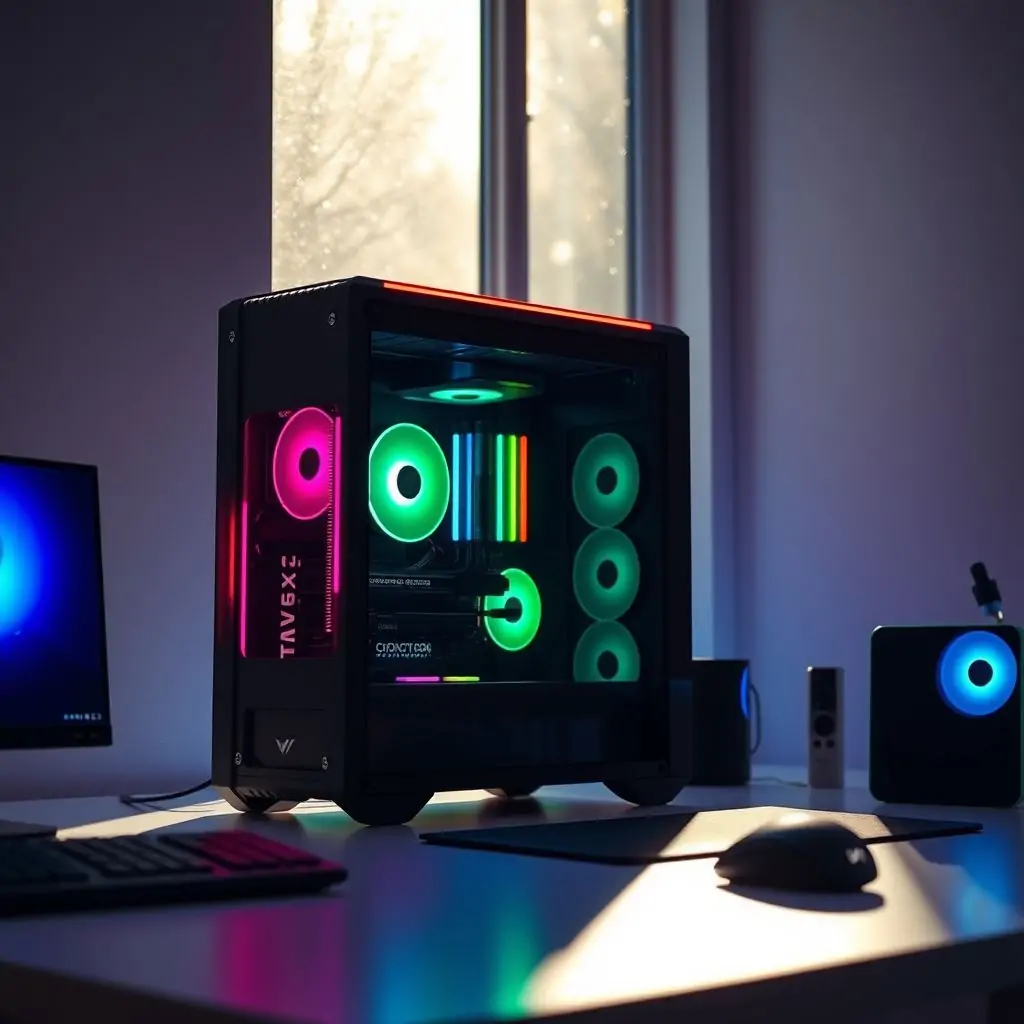
Setting up a Linux gaming PC can seem like an intimidating task for beginners, but it’s a rewarding journey that offers unparalleled customization and control over your system. By learning how to set up a Linux gaming PC, you open yourself to a world of free software options and robust performance tweaks that aren’t typically available on other operating systems. This guide will walk you through the steps necessary to configure your Linux-based machine for top-tier gaming experiences.
Table of Contents
- How to Set Up a Linux Gaming PC: Introduction
- Choosing the Right Hardware for Your Linux Gaming Rig
- Installing and Configuring Ubuntu as Your Operating System
- Optimizing Performance with Pro Tips
- Selecting the Best Graphics Drivers for Linux Gaming
- Enhancing Your Gaming Experience: Software and Tweaks
- Troubleshooting Common Issues in Linux Gaming
- Conclusion
How to Set Up a Linux Gaming PC: Introduction
Linux has long been favored by enthusiasts for its flexibility and efficiency, making it an excellent choice for building a gaming rig. Unlike proprietary operating systems, which often come with limited customization options, Linux allows users to fine-tune every aspect of their system, from performance tweaks to graphical optimizations. This section will serve as your roadmap for setting up a powerful and responsive Linux gaming PC.
Why Choose Linux for Gaming?
The primary reason is the abundance of free software options available on Linux that can significantly enhance your gaming experience. Additionally, Linux offers superior control over system resources, allowing you to allocate more memory and processing power to games without worrying about background processes stealing performance.
Choosing the Right Hardware for Your Linux Gaming Rig
Before diving into software configurations, it’s crucial to select hardware that will support your gaming needs. A well-chosen set of components can make or break your Linux gaming PC setup.
CPU and GPU Selection
The choice between AMD and Intel CPUs is largely subjective but consider the following: Intel processors offer better single-threaded performance, which is beneficial for tasks that rely on quick calculations. Meanwhile, AMD’s Ryzen series excels at multi-threading, making them ideal for multitasking environments.
RAM and Storage
For gaming, 16GB of RAM should be the bare minimum, with many users opting for 32GB or more to ensure smooth performance. When it comes to storage, a solid-state drive (SSD) is highly recommended due to its speed in loading games and operating systems.
Installing and Configuring Ubuntu as Your Operating System
Ubuntu is one of the most popular Linux distributions for gaming because of its user-friendly interface and robust community support. Here’s how you can install it:
Step-by-Step Installation Guide
- Create a bootable USB drive: Use tools like Rufus or UNetbootin to create an installation media.
- Select the correct partitioning scheme: For gaming PCs, choose ‘Erase disk and install Ubuntu.’
- Begin the installation process: Follow the on-screen instructions carefully. Choose your time zone, language settings, and user account details.
Post-Installation Configuration
After installing Ubuntu, update your system to ensure all packages are up-to-date using the command `sudo apt update && sudo apt upgrade`. This will prepare you for further optimizations.
Optimizing Performance with Pro Tips
To maximize performance on your Linux gaming PC, consider these expert-level tweaks:
Adjust Swap Space Settings
The swap space is a feature that allows your system to use hard drive space as virtual RAM. For gamers, however, this can slow down performance. Adjusting the swappiness parameter to lower values (like 10) can reduce disk usage.
Leverage Overlays and Compositors
Using tools like Compiz or Xfwm4 can provide a smoother desktop experience by enabling hardware acceleration for window management, which is particularly useful when playing demanding games.
Selecting the Best Graphics Drivers for Linux Gaming
The performance of your gaming PC heavily relies on having up-to-date and compatible graphics drivers. The NVIDIA or AMD proprietary drivers are generally recommended due to their support for hardware acceleration.
Installing Proprietary Drivers
- NVIDIA: Run `sudo ubuntu-drivers autoinstall` in the terminal.
- AMD: Use the `amdgpu-pro-install` tool from AMD’s official repository.
Enhancing Your Gaming Experience: Software and Tweaks
In addition to hardware considerations, there are several software configurations that can enhance your gaming experience on Linux:
Game Distribution Platforms
Leverage platforms like SteamOS or Lutris for a curated collection of games optimized for Linux. These tools provide an easy way to manage and play games directly from the Linux environment.
Troubleshooting Common Issues in Linux Gaming
While setting up your Linux gaming PC, you may encounter common issues such as graphical glitches or performance bottlenecks. Here’s how to address them:
Resolving Driver Compatibility Issues
If games do not run correctly, try switching between open-source and proprietary drivers. Also, consider checking the game’s compatibility with specific Linux kernels.
Conclusion
In conclusion, setting up a Linux gaming PC is both challenging and rewarding. By carefully selecting hardware, installing Ubuntu efficiently, optimizing system performance, choosing appropriate graphics drivers, and leveraging software solutions, you can create a high-performance gaming environment that rivals any proprietary setup.
Remember, the key to success lies in thorough research and experimentation. Don’t be afraid to explore different configurations and tools until you find what works best for your specific needs. Whether you’re a seasoned Linux user or new to the platform, diving into this project will undoubtedly improve both your technical skills and gaming experience.
For more resources on optimizing your Linux setup, check out Tool Engines. They offer a variety of tools that can help you streamline your workflow and enhance system performance.
Happy Gaming!

- Tool Engines
- How to Set Up a Linux Gaming PC April 10, 2026
- Guide to Linux Package Managers Explained April 10, 2026
- Best Desktop Environments Comparison for Linux April 10, 2026
- How to Install and Use Arch Linux for Beginners April 10, 2026
- How to Use Apple Silicon Optimized Apps April 10, 2026