Complete Guide to Disk Partitioning
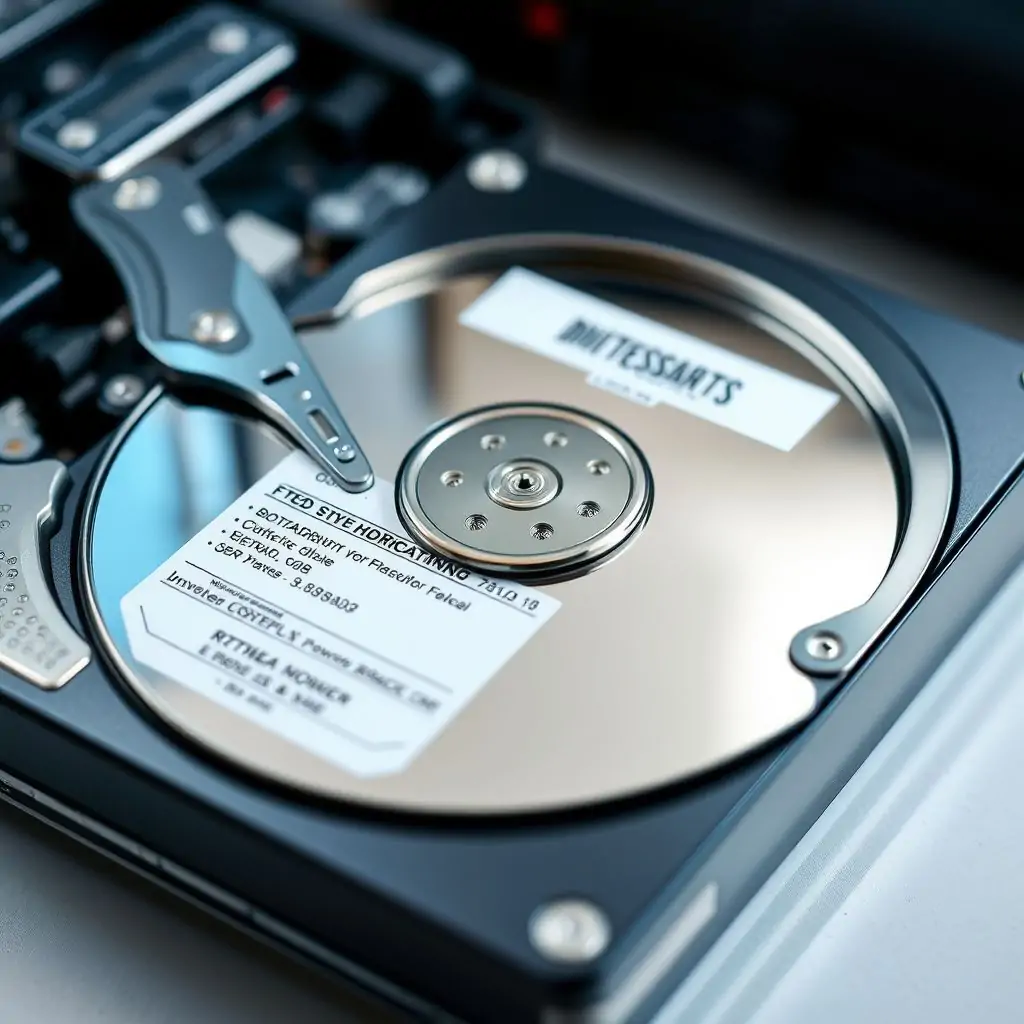
The process of disk partitioning can seem daunting for users who are unfamiliar with how it works or why they might need to use it. However, Complete Guide to Disk Partitioning will provide you with a comprehensive understanding of this essential aspect of computer management.
Table of Contents
- Introduction to Disk Partitioning
- Why Should You Use Disk Partitioning?
- Types of Disk Partitions
- Disk Partitioning Tools and Software
- Step-by-Step Guide to Disk Partitioning
- Benefits of Disk Partitioning
- Best Practices for Effective Disk Management
- Advanced Techniques and Tips
Introduction to Disk Partitioning
Disk partitioning is the process of dividing a single hard disk drive (HDD) or solid-state drive (SSD) into multiple logical sections. This allows users to create different partitions on their storage devices for organizing data, improving system performance, and maintaining stability.
Key Benefits:
- Data Isolation: Keeps your operating system separate from user files, preventing accidental corruption or deletion of important system files.
- Improved Performance: By dedicating certain partitions to specific tasks (like caching), you can optimize performance for critical operations.
Why Should You Use Disk Partitioning?
Disk partitioning offers several benefits that make it a valuable tool for system administrators and regular users alike. It helps in organizing data efficiently, enhancing security, improving performance, and providing flexibility in managing disk space.
Data Isolation:
Partitioning allows you to isolate different types of data on separate partitions. For example, placing your operating system files on one partition while keeping personal documents and multimedia files on another can prevent accidental deletion or corruption of important system files.
Types of Disk Partitions
Disk partitions come in various forms, each serving a specific purpose. Understanding these types is crucial to effectively utilizing disk partitioning.
Primary Partition:
A primary partition is the first type of partition that can be created on a drive and is essential for storing operating systems like Windows or Linux. Each hard drive can have up to four primary partitions, limited by the Master Boot Record (MBR) system.
Extended Partition:
An extended partition allows you to create additional logical drives beyond the limit of four primary partitions imposed by MBRs. Extended partitions are particularly useful for managing large amounts of data across multiple physical disks.
Disk Partitioning Tools and Software
There are numerous tools available to manage disk partitioning, ranging from simple GUI applications to powerful command-line utilities.
Windows Disk Management:
The built-in Windows Disk Management tool allows users to create, delete, format, extend, shrink, and copy partitions on local disks. It is an essential utility for anyone needing basic partition management without additional software.
Third-party Tools:
AOMEI Partition Assistant, a popular third-party solution, offers advanced features such as resizing partitions, merging drives, and cloning hard drives. These tools provide more flexibility than the built-in utilities but require careful consideration of compatibility and stability issues.
Step-by-Step Guide to Disk Partitioning
Disk partitioning involves several steps that need to be carried out carefully to avoid data loss or other complications. Follow these instructions to safely create new partitions on your disk:
Backup Your Data First:
The first step should always be backing up all important files and data before making any changes to the partition structure.
Open Disk Management Tool:
- Windows Users: Right-click on ‘This PC’ or ‘My Computer’, select ‘Manage’. In the Computer Management window, go to Storage > Disk Management.
Benefits of Disk Partitioning
The benefits of disk partitioning extend beyond mere organization and data protection. Properly managed partitions can significantly enhance system performance, facilitate easier upgrades, and improve overall stability.
Performance Optimization:
- Separate System Files from User Data: Keeping the operating system files on one partition while storing user data (like documents and multimedia) on another improves startup times and prevents performance bottlenecks caused by large file sizes in certain directories.
Best Practices for Effective Disk Management
Maintaining a well-organized partition structure requires consistent effort. Here are some best practices to follow:
Regularly Monitor Disk Space Usage:
- Use Tools Like CrystalDiskInfo or HD Tune: These utilities can help you keep track of your drive’s health and capacity over time, alerting you when partitions need resizing or new ones created.
Advanced Techniques and Tips
For those looking to optimize their disk management further, there are several advanced techniques that can be employed.
Dual Booting:
- Create Separate Partitions for Multiple Operating Systems: Dual-boot systems allow users to switch between different operating environments seamlessly. This is particularly useful for developers working on multiple platforms or those who need specialized software suites that aren’t available on a single OS.
Partition Encryption:
- Enhance Security with Encrypted Partitions: Tools such as BitLocker (for Windows) and LUKS (Linux Unified Key Setup) enable you to encrypt entire partitions, ensuring that sensitive data remains secure even if the physical device is compromised.
Conclusion
In conclusion, mastering disk partitioning provides numerous advantages in terms of system organization, security enhancement, and performance optimization. Whether you are a casual computer user or an IT professional managing multiple servers, understanding how to effectively manage your storage space through partitions can significantly improve the efficiency and reliability of your computing environment.
For further insights into technical tools and software, consider visiting ToolEngines, which offers a wide range of utilities for various computational needs. Additionally, for more detailed information on computer architecture and system management, refer to authoritative sources like the Bloomberg Technology Section.

- Tool Engines
- How to Maintain Your Computer for Long Term Use March 28, 2026
- Complete Guide to Data Recovery Tools March 28, 2026
- How to Set Up Two Factor Authentication Everywhere March 28, 2026
- Best File Managers for Windows, Mac and Linux March 28, 2026
- Guide to Linux Desktop Environments March 28, 2026