How to Manage Multiple Monitors on PC
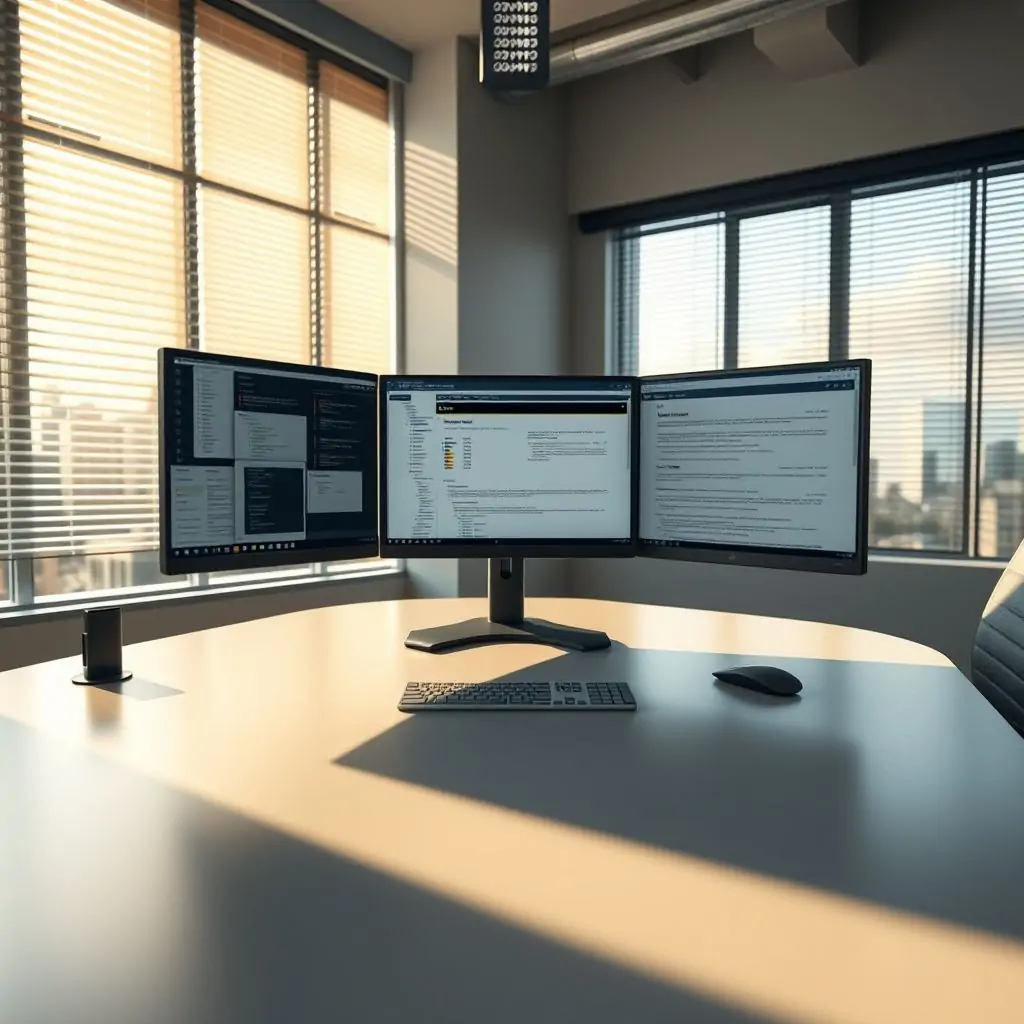
Managing multiple monitors on your PC can significantly enhance productivity by allowing you to work across various applications simultaneously without sacrificing screen real estate. This guide, focusing on How to Manage Multiple Monitors on PC, provides a comprehensive look at optimizing your multi-monitor setup for efficiency and performance.
- Introduction to Managing Multiple Monitors on PC
- Setting Up Your Multi-Monitor Environment
- Optimizing Monitor Resolution and Refresh Rate
- Configuring Desktop Layouts for Multiple Monitors
- Organizing Your Workspace with Virtual Desktops
- Enhancing Multi-Monitor Functionality with Third-Party Software
- Maintaining and Troubleshooting a Multi-Monitor Setup
- Conclusion: Maximizing the Benefits of Multiple Monitors on PC
How to Manage Multiple Monitors on PC: Introduction
The ability to manage multiple monitors is a powerful tool for professionals seeking to increase productivity and streamline their workflow. With the right configuration, multi-monitor setups can transform how you interact with your computer and enhance overall efficiency.
Setting Up Your Multi-Monitor Environment
Before diving into managing multiple monitors on PC, it’s essential to set up your environment correctly. This involves connecting the additional screens to your system and configuring basic settings such as resolution and refresh rate.
- Physical Setup: Place each monitor in a position that complements your workflow without causing eye strain or physical discomfort. Consider ergonomics and lighting when positioning monitors.
- Connectivity: Use appropriate cables (HDMI, DisplayPort, etc.) to connect additional displays to your PC. Ensure the cables are of sufficient quality and length for optimal performance.
Optimizing Monitor Resolution and Refresh Rate
A crucial aspect of managing multiple monitors on PC is ensuring each screen operates at its best possible resolution and refresh rate. This can greatly enhance visual clarity and overall user experience.
- Resolution: Configure each monitor to its native resolution for the clearest display quality. Higher resolutions offer sharper images but may require more powerful hardware to maintain performance.
- Refresh Rate: Aim for a consistent refresh rate across all monitors, typically 60Hz or higher for smoother animation and better responsiveness. Higher rates are ideal but depend on your graphics card’s capabilities.
Configuring Desktop Layouts for Multiple Monitors
One of the most beneficial aspects of how to manage multiple monitors on PC is setting up efficient desktop layouts. This includes positioning windows and arranging applications across screens in a way that maximizes productivity.
- Main Monitor: Use the central screen as your primary workspace, keeping essential tools like email clients, document editors, and resource management software here for easy access.
- Secondary Monitors: Allocate secondary screens to less frequently used applications or tasks. For example, place web browsers on one side and video conferencing platforms on another.
Organizing Your Workspace with Virtual Desktops
Virtual desktops offer an advanced way of organizing your multi-monitor setup by allowing you to switch between different layouts tailored to specific tasks or workflows. This feature is particularly useful for users who work on multiple projects simultaneously.
Creating and Managing Virtual Desktops:
- Create a New Desktop: Right-click the taskbar, select ‘Show Windows from all desktops’ and then add another virtual workspace.
- Switch Between Desktops: Use keyboard shortcuts (Win + Ctrl + Left/Right Arrow) to navigate between different configurations quickly.
Enhancing Multi-Monitor Functionality with Third-Party Software
Leveraging third-party software can unlock additional features and improve the overall performance of your multi-monitor setup. These tools offer advanced window management, screen capture capabilities, and more.
- Window Management: Applications like Actual Multiple Monitors allow you to move windows across multiple screens with ease, enhancing workflow efficiency.
- Screen Capture Tools: Utilize software such as Greenshot for efficient screen capture and annotation, which is particularly useful when collaborating or documenting work processes.
Maintaining and Troubleshooting a Multi-Monitor Setup
Maintaining your multi-monitor configuration involves regular checks to ensure optimal performance and troubleshooting issues that may arise. Regular maintenance can prevent technical problems from disrupting productivity.
- Monitor Health: Periodically check for signs of screen burn-in or dead pixels, and adjust settings as necessary to prolong monitor lifespan.
- Troubleshooting Common Issues: If you encounter display lag or poor image quality, restarting your graphics drivers can often resolve these issues quickly. For persistent problems, refer to the manufacturer’s support forums for more specific advice.
Conclusion: Maximizing the Benefits of Multiple Monitors on PC
Mastering how to manage multiple monitors on PC can dramatically improve your computing experience, making you more productive and efficient. By optimizing configurations, leveraging advanced features, and maintaining hardware health, users can fully unlock the potential of multi-monitor setups.
For further technical insights or tools related to enhancing productivity and performance in a multi-monitor environment, consider exploring ToolEngines, a site dedicated to providing professional-grade software solutions for various computing needs.

- Tool Engines
- How to Maintain Your Computer for Long Term Use March 28, 2026
- Complete Guide to Data Recovery Tools March 28, 2026
- How to Set Up Two Factor Authentication Everywhere March 28, 2026
- Best File Managers for Windows, Mac and Linux March 28, 2026
- Guide to Linux Desktop Environments March 28, 2026