How to Factory Reset Your Android Phone
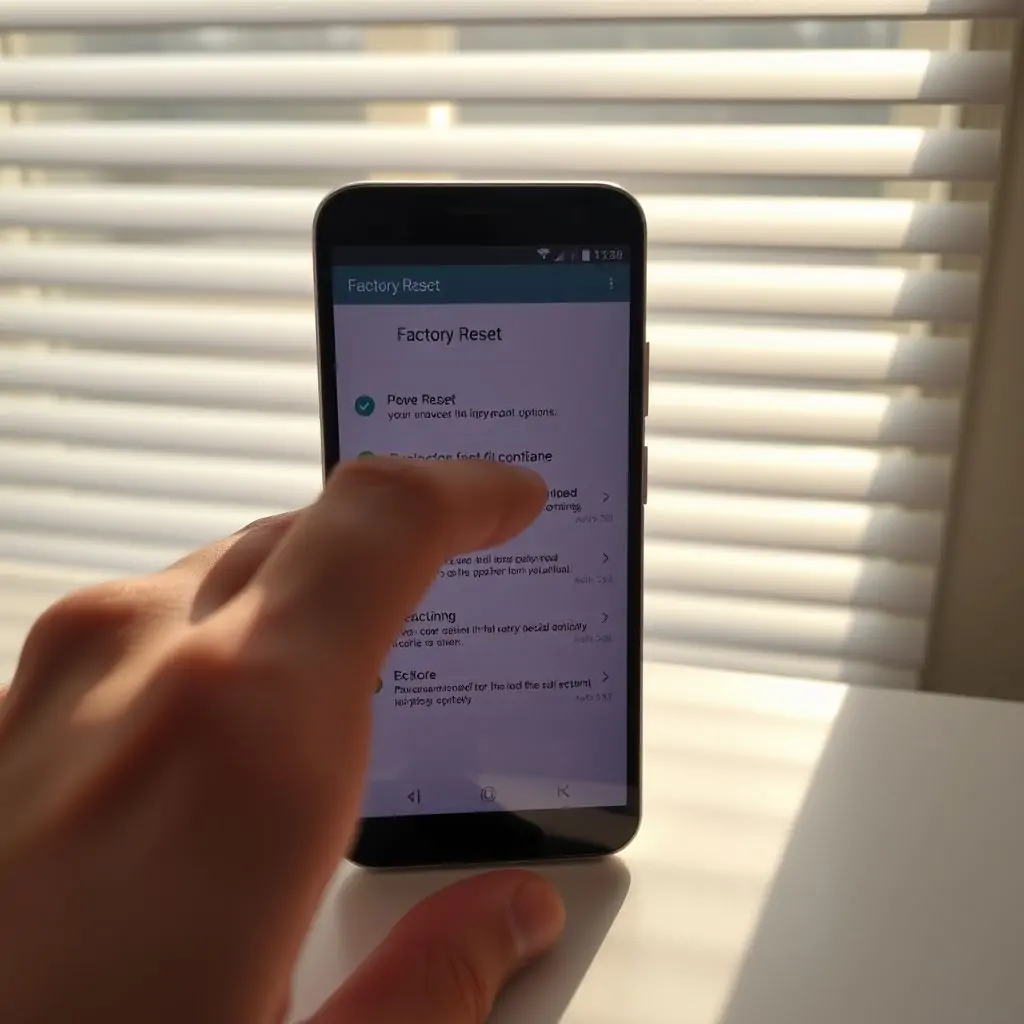
Are you experiencing performance issues with your Android phone? Perhaps it’s running slow or has become cluttered with apps and data that you no longer need. In such cases, factory resetting your device can be an effective solution to restore its initial settings and functionality. This process is akin to starting anew, as it wipes all personal data and resets the phone to its original state when you first purchased it.
Understanding How to Factory Reset Your Android Phone
Factory resetting an Android device can be a quick fix for various issues such as software bugs, lagging performance, or privacy concerns. However, it’s important to understand that this process will erase all data on your phone, including installed apps and personal files, so backing up your information is crucial.
- Why Should You Factory Reset Your Android Phone?
- Precautions Before Performing a Factory Reset
- How to Perform a Factory Reset on Different Types of Android Devices
- Factory Resetting Your Phone via Recovery Mode
- Post-Factory Reset Tips and Considerations
- Common Issues After a Factory Reset and How to Resolve Them
- Additional Troubleshooting Methods for Persistent Problems
Why Should You Factory Reset Your Android Phone?
There are several reasons why a factory reset might be necessary:
- Improving Performance: If your phone is running slow or has become unresponsive, a factory reset can often bring back its initial performance.
- Data Privacy and Security: Before selling or giving away an old device, resetting it ensures that all personal data is wiped clean, preventing any potential misuse.
- Solving Software Issues: For persistent bugs, errors, or unexpected behavior, a factory reset can often resolve these issues by reinstalling the default software and settings.
Pro Tip: Always Create Backups Before Resetting Your Phone
Even though backing up your phone might seem like an extra step, it is highly recommended to avoid losing important data. Use cloud services or external storage devices to safeguard your information.
Precautions Before Performing a Factory Reset
Before proceeding with a factory reset, there are several precautions you should take:
- Backup Your Data: Ensure all important files such as photos, documents, and contacts are backed up. Consider using cloud services like Google Drive or Dropbox.
- Save App Data: If you want to retain settings from specific apps, save them before the reset. For example, many banking apps allow users to export their data.
- Delete Private Information: Before resetting your phone, delete sensitive information like passwords and personal notes that are stored locally on the device.
Pro Tip: Use a Secure Backup Method
Selecting a secure method for backing up your data is crucial. Avoid using public or unsecured networks to transfer important files.
How to Perform a Factory Reset on Different Types of Android Devices
While the basic steps are similar across different models, there might be slight variations depending on the manufacturer and model of your Android phone. Here’s how you can reset it:
- Samsung Galaxy Phones:
- Navigate to “Settings” > “Backup & Reset” > “Factory Data Reset”.
- Confirm the action by selecting “Reset device”.
- Google Pixel Devices:
- Go to “Settings” > “System” > “Advanced” > “Reset options” > “Erase all data (factory reset)”.
- Select “Eraser” and confirm the action.
- Xiaomi Redmi Phones:
- Open “Settings” > “Additional settings” > “Privacy” > “Factory reset”.
- Select “Reset phone” and confirm the action.
Pro Tip: Check Manufacturer Documentation
For detailed instructions specific to your device model, refer to the user manual or visit the manufacturer’s website for guidance.
Factory Resetting Your Phone via Recovery Mode
In some cases, you might need to use recovery mode if the regular method doesn’t work due to system issues:
- Enable Developer Options: Go to “Settings” > “About phone” and tap “Build number” seven times.
- Access Recovery Mode: Restart your device, press and hold the volume down button and power button simultaneously until you see a warning screen. Use the volume buttons to navigate and select recovery mode.
Pro Tip: Use Backup Tools in Recovery Mode
In recovery mode, you might also find options for backing up your data before performing a factory reset.
Post-Factory Reset Tips and Considerations
After resetting your phone, here are some tips to get it back into working order:
- Reinstall Essential Apps: Start by installing apps like Google Play Services, messaging apps, and productivity tools.
- Configure Settings: Customize your phone settings such as Wi-Fi connections, passwords, and screen layouts to suit your needs.
Pro Tip: Use a Custom Launcher
A custom launcher can provide more flexibility in organizing your home screens and setting up shortcuts for quick access to frequently used apps.
Common Issues After a Factory Reset and How to Resolve Them
- Loss of Personal Data: This is expected if you did not back up your data before the reset. Use cloud services or external storage devices for recovery.
- App Compatibility Problems: Ensure that all downloaded apps are compatible with the latest Android version on your phone.
Pro Tip: Update Your Apps
Making sure that all installed applications are up-to-date will help avoid compatibility issues and ensure optimal performance.
Additional Troubleshooting Methods for Persistent Problems
- System Updates: Check for available system updates through the “Settings” menu to improve your phone’s functionality.
- Contact Customer Support: If issues persist, reaching out to customer support or visiting a service center can provide professional assistance.
Pro Tip: Use ToolEngines for Advanced Diagnostics
If you need more advanced diagnostics and troubleshooting tools, consider using ToolEngines to detect and fix underlying hardware or software issues.
Conclusion
Factory resetting your Android phone can significantly improve its performance and usability. By following the steps outlined above, you can effectively perform a factory reset without losing important data. Remember to always back up your information before initiating any major changes to your device.
For further assistance with technical issues or advanced troubleshooting methods, consider visiting high-authority websites like Bloomberg.

- Tool Engines
- How to Maintain Your Computer for Long Term Use March 28, 2026
- Complete Guide to Data Recovery Tools March 28, 2026
- How to Set Up Two Factor Authentication Everywhere March 28, 2026
- Best File Managers for Windows, Mac and Linux March 28, 2026
- Guide to Linux Desktop Environments March 28, 2026