Guide to Customizing Android Home Screen
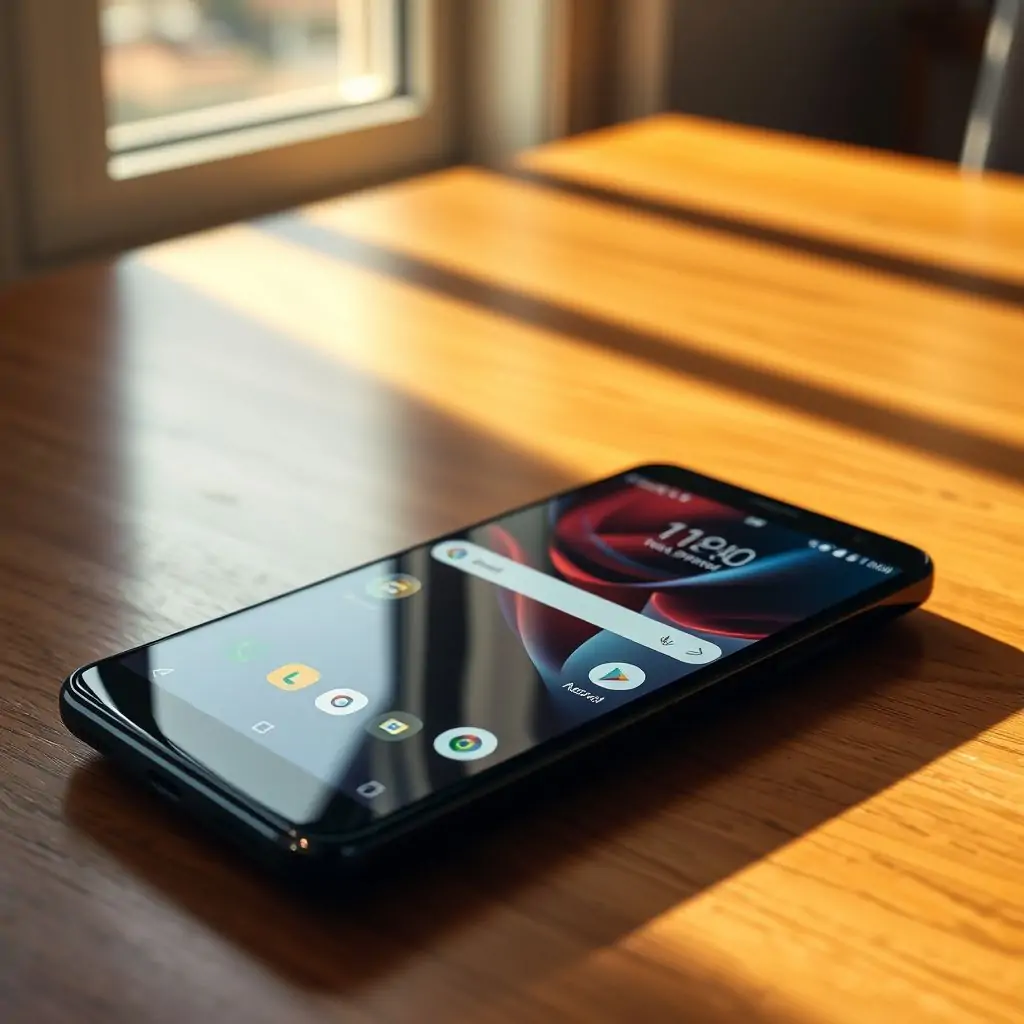
The Android operating system offers users an extensive range of customization options for their home screen, which can significantly enhance both the functionality and aesthetic appeal of their device. In this Guide to Customizing Android Home Screen, we will explore various ways in which you can tailor your smartphone’s interface to suit your preferences. Whether you’re looking to streamline access to frequently used apps or create a more personalized layout, our comprehensive guide covers everything from basics to advanced tweaks.
- Introduction to Customizing Android Home Screen
- Getting Started with Widgets and Icons
- Organizing Your Apps and Shortcuts
- Utilizing Third-party Launchers for Enhanced Customization
- Custom Themes and Wallpapers to Reflect Personal Style
- Advanced Tweaks: Accessibility Features and Gestures
- Optimizing Performance with Customization Tools
- Conclusion and Final Thoughts on Customizing Your Android Home Screen
Guide to Customizing Android Home Screen: Introduction
The concept of customizing your Android home screen revolves around making the most out of a highly flexible operating system. From rearranging icons and widgets to implementing complex gestures, there are numerous ways to personalize your device according to your needs. This guide aims at providing you with detailed insights into every aspect of customization while offering practical tips for beginners and seasoned users alike.
Getting Started with Widgets and Icons
The foundation of any well-organized Android home screen lies in the effective use of widgets and icons. Widgets, which are small app components that provide quick access to information or actions, can be found within the Google Play Store under various categories such as weather, news, social media, and productivity tools.
To add a widget, simply swipe left from your home screen until you reach the “Widgets” panel (or go through Settings > Home screen > Widgets). From there, tap on the desired widget to install it. Adjust its size by dragging the corners of the preview window before placing it onto your home screen.
Icons for apps can be moved around freely by long-pressing them and dragging them to a new location. For more control over icon arrangements, consider using an app locker or icon pack that allows further customization like grouping similar icons together.
Pro Tip:
To maximize space efficiency on your home screen, look for compact widgets designed specifically to provide key features without taking up too much real estate. For instance, a weather widget with minimal text and graphics can serve as an excellent alternative if you’re running short on available space.
Organizing Your Apps and Shortcuts
A cluttered home screen is not only visually unappealing but also hinders productivity. To keep everything in order, start by categorizing your apps into logical groups such as “Productivity,” “Entertainment,” or “Communication.” You can achieve this through drag-and-drop functionality or use folders to group related applications.
Creating shortcuts is another effective way of managing app access without overwhelming the main home screen. To create a shortcut for an app, long-press the app’s icon and select “Shortcut” from the menu that appears; you can then choose which features within the app should be made readily accessible via this shortcut.
Utilizing Third-party Launchers for Enhanced Customization
While Android’s default launcher offers a good range of customization options, third-party launchers take personalization to an entirely new level. Apps like Nova Launcher, Google Now Launcher, and Lawnchair provide extensive control over every aspect of your interface from gesture shortcuts to the ability to customize navigation bars.
To install a custom launcher, download it from the Google Play Store, follow setup instructions provided by the app itself, and restart your device when prompted. Remember that some advanced features may require root access; however, many launchers offer basic customization options even without rooting.
Pro Tip:
Before committing to a third-party launcher, take time to read reviews and watch tutorials online to understand the full range of features available. This ensures you make an informed decision about which launcher best fits your needs.
Custom Themes and Wallpapers to Reflect Personal Style
The appearance of your home screen can greatly influence user experience, making it important to choose a theme that not only looks great but also enhances usability. Thousands of themes are available for download from the Play Store or through dedicated apps like Material You.
Wallpapers, in particular, play a crucial role in setting the tone and style of your home screen. Whether you prefer minimalist designs with clean lines or vibrant illustrations full of color, there’s something out there to suit every taste. Additionally, some launchers support dynamic wallpapers that change based on time of day, weather conditions, etc., adding another layer of personalization.
Advanced Tweaks: Accessibility Features and Gestures
For power users looking to squeeze every bit of functionality out of their Android device, incorporating accessibility features and custom gestures is essential. These settings often go unnoticed but can greatly enhance usability.
To enable gesture navigation (such as swiping up or down for home button), head over to Settings > System > Gestures and follow the instructions provided by your manufacturer’s software update. Similarly, adjusting font sizes under Accessibility can improve readability significantly especially on larger screens.
Pro Tip:
Leverage third-party apps for even more control over gestures and shortcuts. Tools like Tasker allow you to create complex workflows triggered by specific actions, making your daily routine smoother and faster.
Optimizing Performance with Customization Tools
In addition to aesthetic benefits, customizing your Android home screen can also improve performance. By removing unused apps, widgets, and icons, you free up valuable system resources which could otherwise slow down your device.
To optimize memory usage specifically, use apps like SD Maid or Clean Master that scan for and delete unnecessary files and caches. This not only keeps your storage space clear but also ensures faster load times for applications.
Conclusion and Final Thoughts on Customizing Your Android Home Screen
In conclusion, the Guide to Customizing Android Home Screen provides a comprehensive overview of how one can tailor their mobile experience according to personal preferences. From basic arrangements of apps and icons to leveraging advanced launchers for full control over every element, customization is an art form that enhances both functionality and aesthetics.
As you delve deeper into customizing your Android device, remember that practice makes perfect. Experiment with different themes, layouts, and third-party applications until you find what works best for you. Your home screen should reflect not just your taste but also align perfectly with your daily routines.
To learn more about optimizing performance on mobile devices, check out ToolEngines for a variety of resources and tools aimed at boosting productivity and efficiency.

- Tool Engines
- How to Maintain Your Computer for Long Term Use March 28, 2026
- Complete Guide to Data Recovery Tools March 28, 2026
- How to Set Up Two Factor Authentication Everywhere March 28, 2026
- Best File Managers for Windows, Mac and Linux March 28, 2026
- Guide to Linux Desktop Environments March 28, 2026