How to Use Split View and Multitasking on macOS
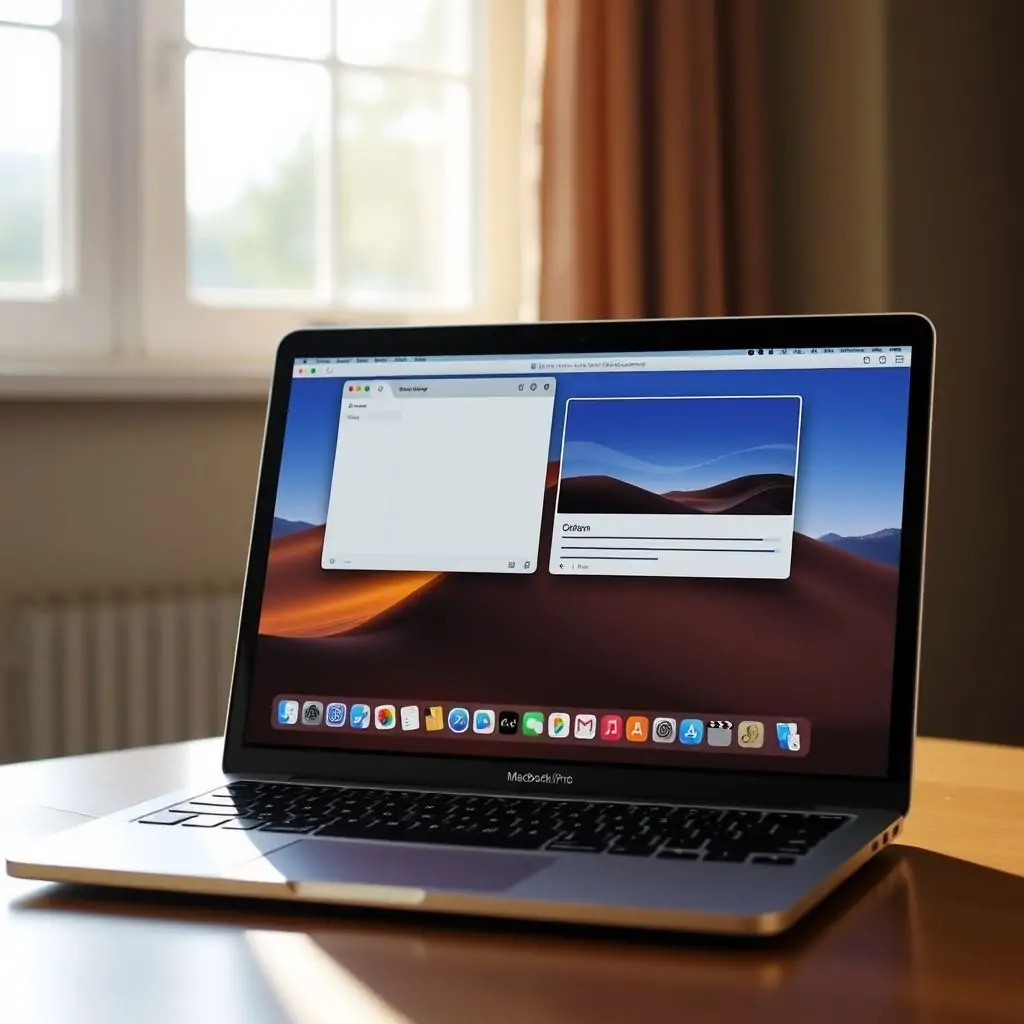
MacOS offers a variety of powerful tools to enhance productivity for both casual users and professionals alike. Among these features are Split View and Multitasking, which enable users to manage multiple applications simultaneously without sacrificing screen real estate. In this comprehensive guide, we will explore how to use Split View and Multitasking on macOS effectively.
- Introduction
- Understanding the Basics of Split View and Multitasking
- How to Use Split View on macOS
- Using Split View with Specific Applications
- Advanced Multitasking Techniques
- Tips and Tricks for Maximizing Productivity
- Troubleshooting Common Issues
- Conclusion
Introduction to How to Use Split View and Multitasking on macOS
The modern workplace demands efficiency and agility, which is why it’s essential for macOS users to know how to use Split View and Multitasking effectively. These features are not only beneficial but also indispensable for managing multiple tasks simultaneously. Understanding their capabilities can significantly improve your workflow.
Understanding the Basics of Split View and Multitasking
Before diving into detailed instructions, it’s important to grasp what Split View and Multitasking entail in macOS. Split View allows you to run two applications side by side on your screen, each occupying half of the space. This is particularly useful for tasks that require constant switching between different apps.
Multitasking encompasses a range of features such as Pictures in Pictures (PiP), Split View, and Mission Control. These functionalities enable users to manage their workflow more efficiently by allowing them to view and interact with multiple applications simultaneously without losing context.
Key Benefits:
- Efficiency: Reduce time spent switching between applications.
- Productivity: Accomplish more tasks in less time.
- Flexibility: Adapt to different work scenarios effortlessly.
How to Use Split View on macOS
To activate Split View, follow these steps:
- Locate an application window and drag it to the left or right side of your screen. The window will automatically resize itself.
- With one app open in Split View mode, grab another application’s icon from the Dock or the Application Switcher (CMD+TAB) and drag it into the remaining space on the screen.
- The two applications will now share your screen in equal halves.
Pro Tip: Use Split View frequently to maintain focus on multiple projects at once. For example, you can have a text editor open next to a browser window for quick reference or research.
Using Split View with Specific Applications
Some applications are better suited for use in Split View than others due to their nature and functionality:
- Text Editors & IDEs: Perfect for coding or writing alongside documentation.
- Browsers: Ideal for comparing websites, researching, or managing multiple tabs across two windows.
- Email Clients: Great for checking emails while working on documents simultaneously.
Specific Use Cases:
- Coding and Development: Work with your IDE next to a browser window or documentation site like Stack Overflow.
- Research & Writing: Keep a reference document on one side while writing on the other, ensuring you can easily toggle between them.
Advanced Multitasking Techniques
Multitasking in macOS goes beyond Split View and includes Picture-in-Picture (PiP), which allows a video to float above your applications:
- Open a streaming app or video player.
- Duplicate the window by pressing CMD+TAB, then drag it away from its original position.
- The video will now float in front of your other applications, allowing you to continue working without missing out on entertainment or educational content.
Moreover, Mission Control is a powerful tool for managing all open windows and virtual desktops:
- Press F3, or use the Show Desktop icon in the Dock to access Mission Control.
- Mission Control will display all your current applications, allowing you to switch between them easily.
Tips and Tricks for Maximizing Productivity
Beyond basic functionality, there are several tips that can help maximize the use of Split View and Multitasking features:
- Customize Dock Layout: Arrange your most frequently used applications at easy-to-reach positions on the Dock.
- Utilize Spaces: Create separate virtual desktops for different tasks or projects to keep them organized and minimize clutter.
- Leverage Keyboard Shortcuts: Familiarize yourself with shortcuts like CMD+TAB, F3, and others for quick navigation between applications.
Multitasking is not just about managing windows but also ensuring that you stay focused on your most important tasks. For instance, setting up a dedicated Space for meetings or calls can help minimize distractions while maximizing efficiency.
Troubleshooting Common Issues
Despite the robustness of Split View and Multitasking features in macOS, users might encounter some common issues:
- Applications not responding to drag-and-drop: Restarting the application or the system can often resolve this issue.
- Split View doesn’t work correctly with specific applications: Some third-party apps may have compatibility issues. Checking for updates or reaching out to support can be helpful.
Solutions and Recommendations:
- Visit the official Apple Developer site or community forums for more detailed troubleshooting guides.
- If an application is lagging, consider using Picture-in-Picture mode instead of trying to split view it with another app.
Conclusion
Multitasking and Split View are powerful tools in macOS that can greatly enhance your productivity. By mastering these features, you can streamline your workflow and manage multiple tasks effectively without sacrificing screen real estate or losing focus. As always, it’s important to regularly update your system and applications to ensure compatibility and take full advantage of these capabilities.
For further reading on optimizing your MacOS experience, be sure to check out ToolEngines, where you can find a wealth of tips and resources tailored for macOS users.

- Tool Engines
- How to Maintain Your Computer for Long Term Use March 28, 2026
- Complete Guide to Data Recovery Tools March 28, 2026
- How to Set Up Two Factor Authentication Everywhere March 28, 2026
- Best File Managers for Windows, Mac and Linux March 28, 2026
- Guide to Linux Desktop Environments March 28, 2026